Sign in

Quickstart - Get started with commenting in Handsontable using Liveblocks and Next.js

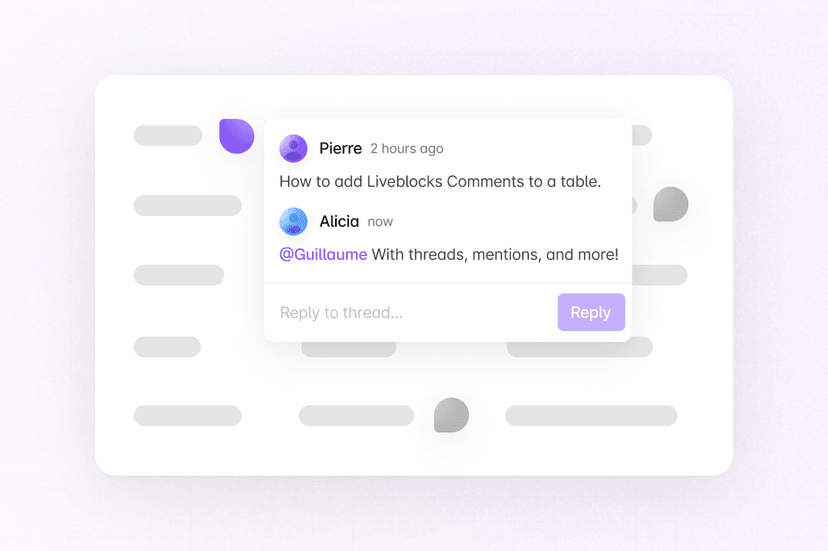
Liveblocks is a realtime collaboration infrastructure for building performant collaborative experiences. Follow the following steps to start adding a commenting experience to your Next.js /app directory application using the hooks from @liveblocks/react and the components from @liveblocks/react-ui.

Quickstart

  1. Install Liveblocks

    Every package should use the same version.

    Terminal
    npm install @liveblocks/client @liveblocks/react @liveblocks/react-ui @handsontable/react-wrapper handsontable
  2. Initialize the liveblocks.config.ts file

    We can use this file later to define types for our application.

    Terminal
    npx create-liveblocks-app@latest --init --framework react
  3. Define thread metadata

    Inside the new liveblocks.config.ts file, define the metadata shape for threads. Metadata is used to attach comment threads to table cells.

    liveblocks.config.ts
    declare global {  interface Liveblocks {    ThreadMetadata: {      rowId: string;      columnId: string;    };  }}
    export {};
  4. Import default styles

    The default components come with default styles, you can import them into the root layout of your app or directly into a CSS file with @import.

    app/layout.tsx
    import "@liveblocks/react-ui/styles.css";
  5. Add comment cell styles

    Add CSS for the comment pins in your table cells. The trigger is hidden by default and appears when hovering or when the composer is open.

    app/globals.css
    .comment-cell-trigger {  opacity: 0;  transition: opacity 0.15s ease;}
    .comment-cell:hover .comment-cell-trigger,.comment-cell-trigger[data-open] { opacity: 1;}
    .handsontable td { vertical-align: middle;}
    .handsontable .comment-cell { min-height: 40px;}
  6. Create a Liveblocks room

    Liveblocks uses the concept of rooms, separate virtual spaces where people collaborate, and to create a realtime experience, multiple users must be connected to the same room. When using Next.js' /app router, we recommend creating your room in a Room.tsx file in the same directory as your current route.

    Set up a Liveblocks client with LiveblocksProvider, join a room with RoomProvider, and use ClientSideSuspense to add a loading spinner to your app.

    app/Room.tsx
    "use client";
    import { ReactNode } from "react";import { LiveblocksProvider, RoomProvider, ClientSideSuspense,} from "@liveblocks/react/suspense";
    export function Room({ children }: { children: ReactNode }) { return ( <LiveblocksProvider publicApiKey={""}> <RoomProvider id="my-room"> <ClientSideSuspense fallback={<div>Loading…</div>}> {children} </ClientSideSuspense> </RoomProvider> </LiveblocksProvider> );}
  7. Create thread context for your table

    Use React context to set up cells and thread state for your table with useThreads, allowing cells to retrieve their comments.

    app/CellThreadContext.tsx
    "use client";
    import { useState, createContext, useContext } from "react";import { useThreads } from "@liveblocks/react/suspense";import { ThreadData } from "@liveblocks/client";
    export type OpenCell = { rowId: string; columnId: string } | null;
    type CellThreadContextValue = { threads: ThreadData[]; openCell: OpenCell; setOpenCell: (openCell: OpenCell) => void;};
    const CellThreadContext = createContext<CellThreadContextValue | null>(null);
    export function CellThreadProvider({ children,}: { children: React.ReactNode;}) { const { threads } = useThreads(); const [openCell, setOpenCell] = useState<OpenCell>(null);
    return ( <CellThreadContext.Provider value={{ threads, openCell, setOpenCell }}> {children} </CellThreadContext.Provider> );}
    export function useCellThread(): CellThreadContextValue { const context = useContext(CellThreadContext); if (!context) { throw new Error("useCellThread must be used within CellThreadProvider"); } return context;}
  8. Create a custom comment cell

    Create a custom cell renderer for your table that displays comment pins alongside cell values using CommentPin, FloatingComposer, FloatingThread, useSelf, and the context we created. Each cell shows a pin that opens a popover for creating or viewing comment threads.

    app/CommentCell.tsx
    "use client";
    import { CommentPin, FloatingComposer, FloatingThread, Icon,} from "@liveblocks/react-ui";import type { HotRendererProps } from "@handsontable/react-wrapper";import { useSelf } from "@liveblocks/react";import { CSSProperties, useState } from "react";import { useCellThread } from "./CellThreadContext";
    export function CommentCell({ instance, row, col, prop, value,}: HotRendererProps) { const columnId = String(prop); const rowId = String(instance.getDataAtRowProp(row, "id") ?? "");
    if (!rowId || !columnId) { return null; }
    return ( <CommentCellBody key={`${row}-${col}-${rowId}-${columnId}`} rowId={rowId} columnId={columnId} value={value} /> );}
    const COMMENT_PIN_SIZE = 24;
    const commentPinStyle = { "--lb-comment-pin-padding": "3px", width: COMMENT_PIN_SIZE, height: COMMENT_PIN_SIZE, cursor: "pointer", marginTop: 3, boxSizing: "border-box",} as CSSProperties;
    function CommentCellBody({ rowId, columnId, value,}: { rowId: string; columnId: string; value: unknown;}) { const { threads, openCell, setOpenCell } = useCellThread(); const [isComposerOpen, setIsComposerOpen] = useState(false);
    const currentUserId = useSelf((self) => self.id) ?? undefined;
    const thread = threads.find( ({ metadata }) => metadata.rowId === rowId && metadata.columnId === columnId, );
    const defaultOpen = openCell !== null && openCell.rowId === rowId && openCell.columnId === columnId;
    const metadata = { rowId, columnId };
    return ( <div className="comment-cell" style={{ display: "flex", alignItems: "center", gap: 12, }} > <span className="comment-cell-value"> {String(value ?? "")} </span>
    {!thread ? ( <div className="comment-cell-trigger" data-open={isComposerOpen || undefined} > <FloatingComposer metadata={metadata} onComposerSubmit={() => setOpenCell(metadata)} onOpenChange={setIsComposerOpen} style={{ zIndex: 10 }} > <CommentPin corner="top-left" style={commentPinStyle} userId={currentUserId} > {!isComposerOpen ? ( <Icon.Plus style={{ width: 14, height: 14 }} /> ) : null} </CommentPin> </FloatingComposer> </div> ) : ( <FloatingThread thread={thread} defaultOpen={defaultOpen} onOpenChange={(isOpen) => { if (!isOpen && defaultOpen) { setOpenCell(null); } }} onComposerSubmit={() => setOpenCell(metadata)} style={{ zIndex: 10 }} autoFocus > <CommentPin corner="top-left" style={commentPinStyle} userId={thread.comments[0]?.userId} /> </FloatingThread> )} </div> );}
  9. Use Liveblocks hooks and components with Handsontable

    Set up Handsontable with your CellThreadProvider context. Import your CommentCell component and use it as a custom cell renderer, and replace the table data with your own. Learn more on the Handsontable website.

    app/CollaborativeApp.tsx
    "use client";
    import { HotColumn, HotTable } from "@handsontable/react-wrapper";import { registerAllModules } from "handsontable/registry";import { CellThreadProvider } from "./CellThreadContext";import { CommentCell } from "./CommentCell";
    registerAllModules();
    type RowData = { id: string; name: string; price: number };
    const ROW_DATA: RowData[] = [ { id: "1", name: "Laptop", price: 1000 }, { id: "2", name: "Phone", price: 500 }, { id: "3", name: "Tablet", price: 300 },];
    export function CollaborativeApp() { return ( <CellThreadProvider> <HotTable data={ROW_DATA} colHeaders={["Name", "Price"]} rowHeaders={false} height={200} width={500} licenseKey="non-commercial-and-evaluation" autoWrapRow={true} autoWrapCol={true} stretchH="all" minRowHeights={50} > {/* Use the custom comment cell renderer */} <HotColumn renderer={CommentCell} data="name" readOnly /> <HotColumn renderer={CommentCell} data="price" readOnly /> </HotTable> </CellThreadProvider> );}
  10. Add the Liveblocks room to your page

    Import your room into your page.tsx file, and place your collaborative app components inside it.

    app/page.tsx
    import { Room } from "./Room";import { CollaborativeApp } from "./CollaborativeApp";
    export default function Page() { return ( <Room> <CollaborativeApp /> </Room> );}
  11. Next: authenticate and add your users

    Comments is set up and working now inside Handsontable, but each user is anonymous—the next step is to authenticate each user as they connect, and attach their name and avatar to their comments.

    Add your users to Comments

What to read next

Congratulations! You've set up the foundation to start building a commenting experience for your Next.js application.
Examples using Handsontable