Agentic users
Liveblocks enables you to add AI agents to your app as first-class collaborators. Agents can edit the same multiplayer Sync documents as your users, appear in presence alongside humans, show live status, chat in realtime, reply to comments, and run from any language or workflow tool.
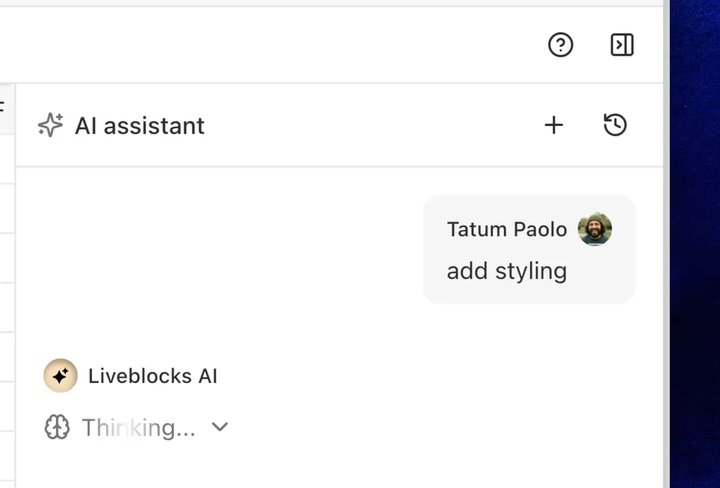
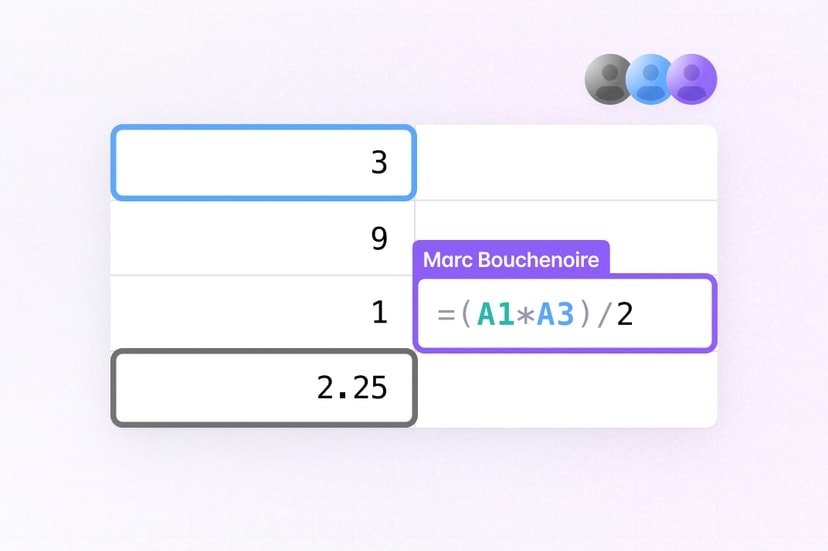
Agentic users in the AI Spreadsheet example
Features
- Agentic editing: Let AI generate and apply document changes simultaneously with other users.
- Edit from any language: Modify documents from Node.js, Python, or any stack with JSON Patch.
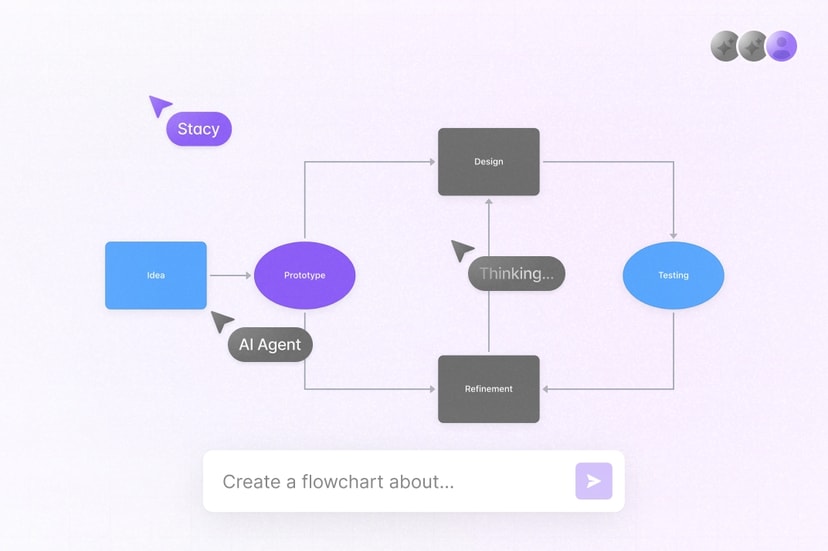
- AI presence: Show agents working live, with avatars and focus indicators as they make changes.
- AI status: Stream live status updates to your app with persistent feeds.
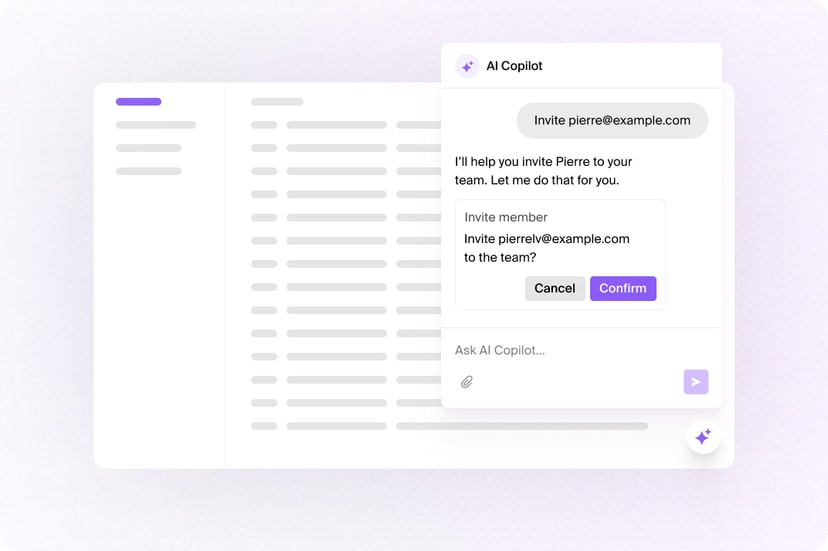
- AI chat: Build custom multiplayer chats for agents and humans.
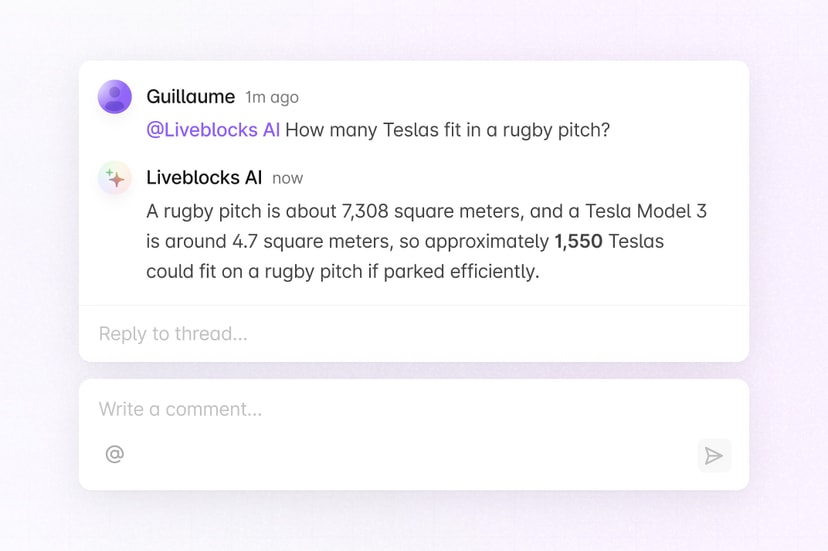
- AI comments: Let agents review content and join thread discussions.
Get started
Choose the features you need. Each guide uses Next.js and can be combined with the others.
Implementation
This is an overview of how each feature can be implemented. Agents edit shared documents through Sync, appear in Presence like human users, publish working status and chat through Feeds, and reply to comments.
Agentic editing
Agents can read and modify your realtime Sync documents
concurrently with your users. Generate changes with AI, then apply them with
Liveblocks.mutateStorage—edits
appear instantly for connected users.
Learn more under Agentic editing.
Editing from any language
Agentic pipelines are often built in Python or other non-JavaScript stacks. The JSON Patch endpoint lets any system edit Storage over HTTP using RFC 6902 operations, a standard LLMs already understand, allowing models to generate patches directly from natural language instructions.
Learn more in our JSON Patch guide.
AI presence
Show what agents are working on inside your app by giving them
live Presence updates, such as selections,
typing indicators, and online avatars.
Liveblocks.setPresence
allows you to set your agent’s presence.
After setting presence, you can read it in your app with
useOthers like any human, so
existing avatar stacks, cursors, and focus indicators show AI activity with no
extra UI.
Learn more under the Presence use case.
AI status
Presence shows that an agent is in the room right now, but it disappears when
the process ends. Use Feeds to publish the agent’s
working state—thinking, searching, writing, complete—and save it permanently in
a history. Create a status message with
Liveblocks.createFeedMessage
when work starts, then update it with
Liveblocks.updateFeedMessage
as the agent moves through each stage.
In React, read the latest status with
useFeedMessages and
render it in your UI.
Keep status in its own feed, separate from chat. Learn more under Feeds.
AI chat
Use Feeds for anything the agent says that should
persist: chat replies and streamed output. Append messages with
Liveblocks.createFeedMessage,
and stream a reply token by token by updating one message repeatedly with
Liveblocks.updateFeedMessage.
Users who reconnect can read the full output later, unlike presence, which disappears with the connection. Use AI status for the agent’s current working state. For the complete messaging patterns, read the chat use case.
AI comments
Agents can review content and leave contextual feedback with
Comments. Generate the feedback with AI, convert it
with
markdownToCommentBody,
and post it with
Liveblocks.createThread
under the agent’s own user ID.
You can also automatically trigger an agent when a user mentions it in a thread
using the
commentCreated
webhook. Learn more under the comments use case.
Examples
Explore complete examples that combine the features described above.