Get started with adding realtime avatar and cursor presence using Liveblocks and Next.js
Liveblocks is a realtime collaboration infrastructure for building performant
collaborative experiences. Follow the following steps to start adding
collaboration to your Next.js /app directory application using the hooks from
the @liveblocks/react package.
Quickstart
Install Liveblocks
Every package should use the same version.
TerminalInitialize the
liveblocks.config.tsfileWe can use this file later to define types for our application.
TerminalImport default styles
The default components come with default styles, you can import them into the root layout of your app or directly into a CSS file with
@import.app/layout.tsxCreate a Liveblocks room
Liveblocks uses the concept of rooms, separate virtual spaces where people collaborate, and to create a realtime experience, multiple users must be connected to the same room. When using Next.js’
/approuter, we recommend creating your room in aRoom.tsxfile in the same directory as your current route.Set up a Liveblocks client with
LiveblocksProvider, join a room withRoomProvider, and useClientSideSuspenseto add a loading spinner to your app.app/Room.tsxUse the Liveblocks components
Next, create
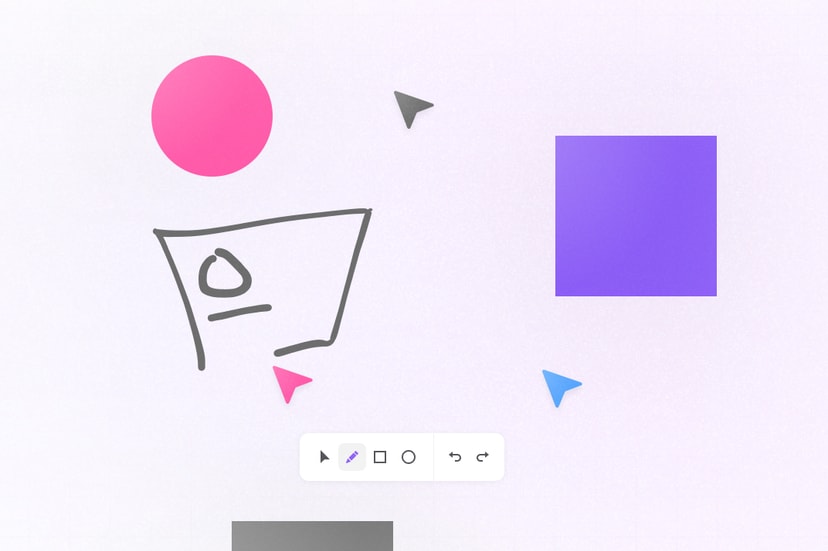
CollaborativeApp.tsxand add ourAvatarStackandCursorscomponents. These are pre-built components that are great starting points before diving into Liveblocks hooks such asuseOthersanduseMyPresence.app/CollaborativeApp.tsxAdd the components to your page
After creating your presence components, it’s time to add them to your app. Import your multiplayer room into your
page.tsxfile, and place your collaborative app components inside it.app/page.tsxNext: add user information
You've set up cursors and avatars, and they'll update live as users join and leave the room, but each user is still anonymous. To add user information, you'll need to set up authentication and add each user's name and avatar.
Set up authentication and add user information
What to read next
Congratulations! You now have set up the foundation to start building collaborative experiences for your React application.
- @liveblocks/react API Reference
- Next.js and React guides
- How to use Liveblocks presence with React
- How to use Storage with React