How to add users to Liveblocks presence components
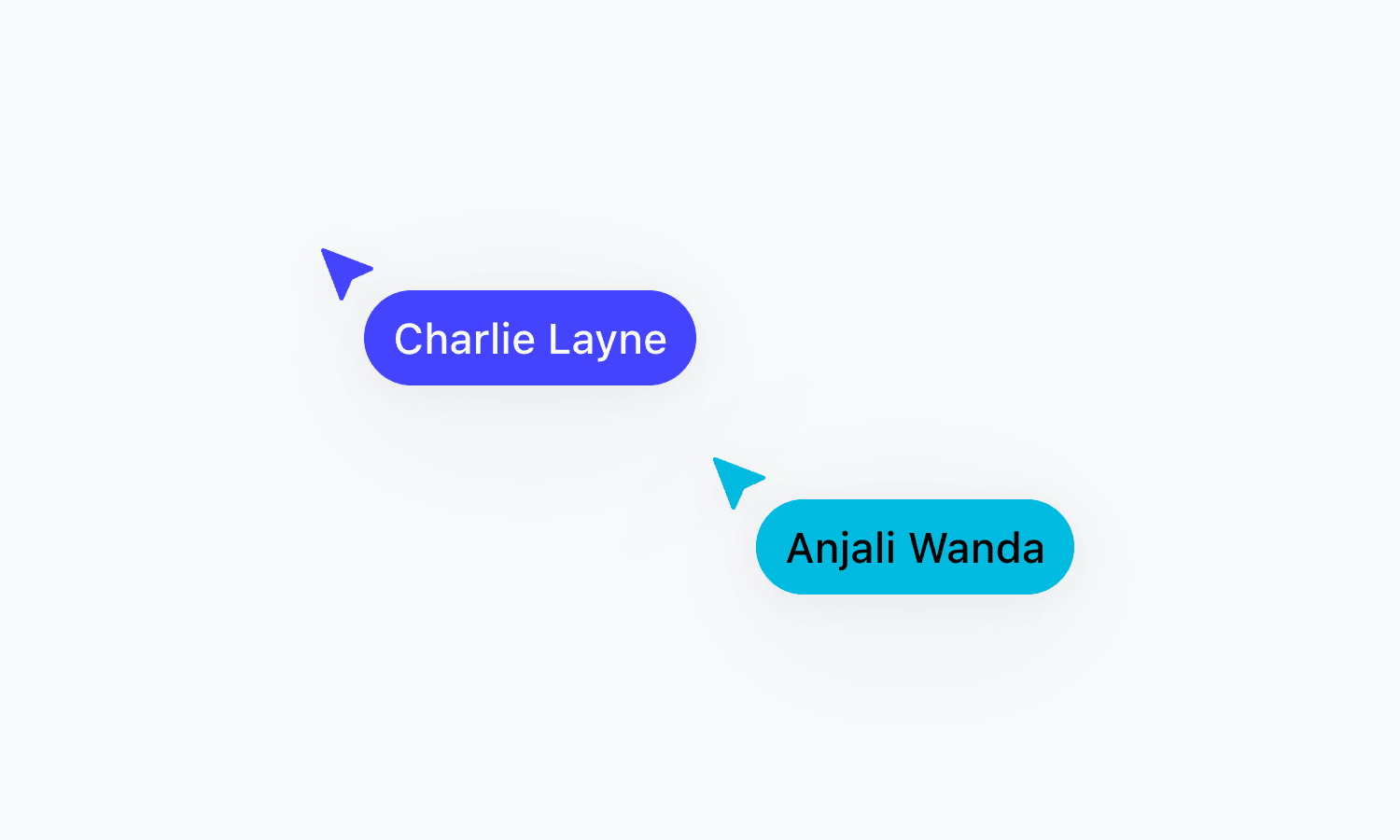
After following the get started guide for presence components, you’ll notice that each user is currently “Anonymous”, and that there’s no way to mention or tag other users. To enable these features, we need to tell Liveblocks where to find your users’ information.
What we’re learning
In this guide we’ll be modifying
LiveblocksProvider,
learning how to:
- Authenticate your application with
authEndpointandidentifyUser. - Add names and avatars to threads and comments with
resolveUsers.
Authenticate your application
The first step is to find an authentication guide for your framework and authenticate your app, as this is necessary for adding users. Here’s an example using ID token authentication, our recommended method, with an email address as a user’s ID.
Resolving users
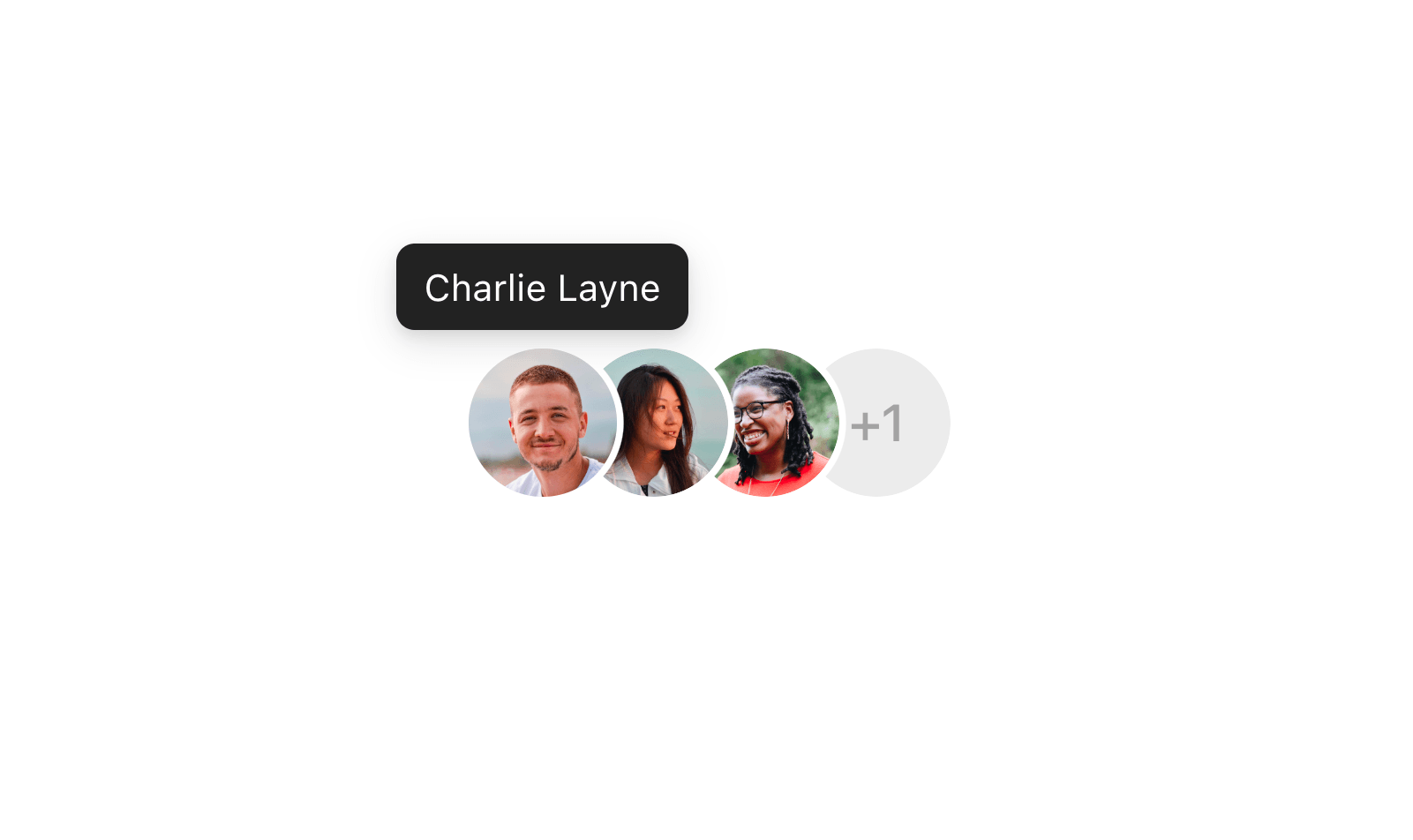
To show each user’s name and avatar in the ready-made
AvatarStack and
Cursors components, we need
to use
resolveUsers.
Add the function to your LiveblocksProvider
The
resolveUsersfunction is passed as an option toLiveblocksProvider—let’s add it. This function provides you withuserIds, an array of user IDs that have interacted with Comments. TheseuserIdsmatch the IDs set when authenticating users in your app.Return your users
resolveUsersrequires you to return a list of users in theUserMeta["info"]format we set earlier. Remember that name and avatar are required for the default components, but you can also use any other metadata in your app.We’re only returning one user here, but make sure to return an array containing each user, in the same order you received the IDs.
Real-world example
In your real application you’ll probably be getting users from your API endpoint and database via
fetch. This is how we’d recommend building out this function.Render the presence components
Import the presence components in your app to see them.
Cursorswraps around the component where the cursors will appear.Users are now visible
After adding this, you should now be able to see your users in presence components!
Next steps
You’re now ready to start building your multiplayer Liveblocks application! Here’s where you can learn more: