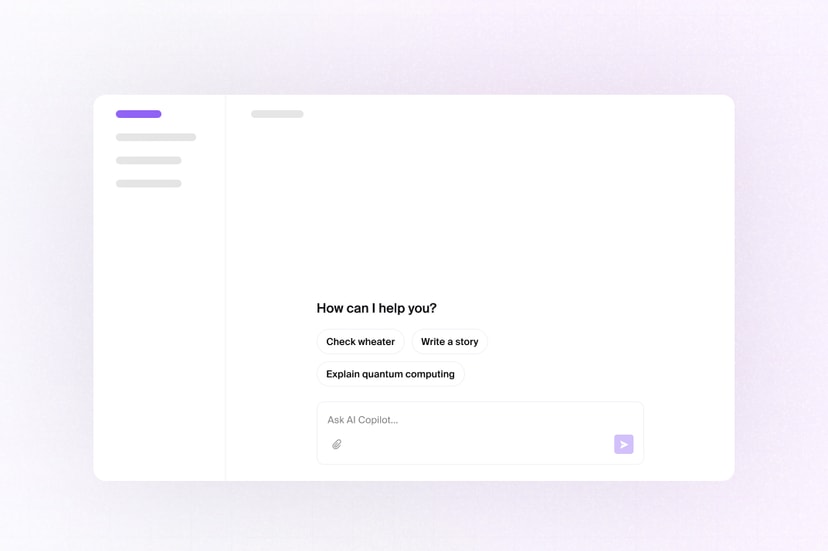
Get started with a realtime AI chat using Liveblocks, AI Elements, and Next.js
Liveblocks Feeds persist chat messages and stream
updates to everyone connected to a room. Follow these steps to build a realtime
AI chat in a Next.js /app directory application, using
AI Elements for the interface and the
AI SDK to generate responses.
See the finished result in the Realtime AI Elements Chats example.
Quickstart
Install Liveblocks and the AI SDK
Every Liveblocks package should use the same version.
TerminalInstall AI Elements
Install the AI Elements components used in this guide. The CLI adds the component source and any required shadcn/ui dependencies to your app. AI Elements requires React 19 and Tailwind CSS 4.
TerminalMessageResponseuses Streamdown to render Markdown. Add its source files to your Tailwind CSS configuration.app/globals.cssAdd your API keys
Add your Liveblocks secret key from the dashboard, then add an AI Gateway key for model access. Keep both keys on the server.
.env.localInitialize the
liveblocks.config.tsfileCreate a config file that will hold the Liveblocks types for your app.
TerminalDefine the feed message shape
In
liveblocks.config.ts, define the JSON data stored in each feed message. Thestreamingproperty lets every connected client show when an assistant response is still being generated.liveblocks.config.tsStream AI responses into the feed
Create an API route that generates a response with the AI SDK. The route creates one assistant message with
createFeedMessage, then writes each batch of generated text into it withupdateFeedMessage. Because the response is stored in a feed, every connected user sees it stream in through Liveblocks—no separate client-side AI stream is needed.app/api/ai-reply/route.tsIn production, validate the user and their access to
roomIdbefore writing messages with a secret key.Build the chat with AI Elements
Use
useFeedMessagesto render the shared message history. When a user submits the AI ElementsPromptInput, create the feed if needed, append their message withuseCreateFeedMessage, and call the server route.app/Chat.tsxCreate a Liveblocks room
Liveblocks rooms are separate collaborative spaces. Users connected to the same room share the same feeds and messages. Set up a
LiveblocksProvider, join a room withRoomProvider, and useClientSideSuspensewhile the feed loads.app/Room.tsxAdd the room and chat to your page
Render the chat inside the room so it can use the Feeds hooks.
app/page.tsxNext: authenticate your users
Your realtime AI chat is now working. Before going to production, authenticate your users and give them explicit access to the rooms and feeds they can use.
Set up authentication
What to read next
You’ve built a realtime AI chat where Liveblocks persists and synchronizes the conversation, the AI SDK generates responses, and AI Elements renders the interface.