Comments
With Liveblocks you can embed a commenting experience into your product, for document reviews, design feedback, video annotations, or discussions on any content. Attach threads to any part of your app, mention users and groups, notify people in-app and by email, and let your backend and AI agents join the conversation.
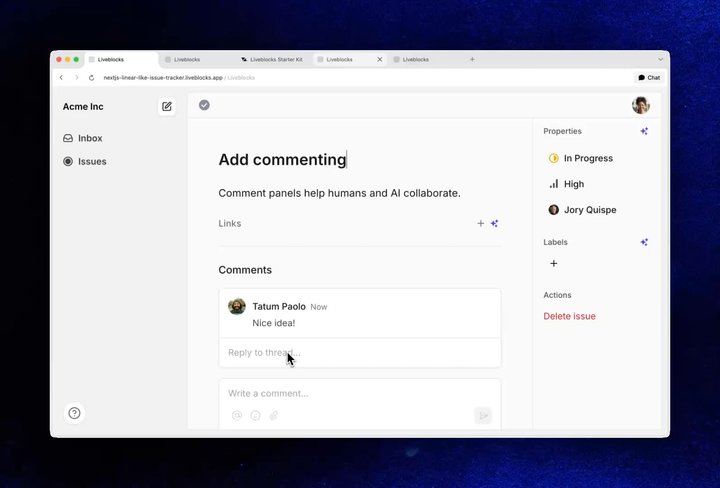
Commenting in various examples
Features
- Commenting: Render realtime threads with replies, reactions, and editing built in.
- Contextual comments: Attach threads to any part of your app with metadata.
- Mentions and groups: Tag users and teams by typing
the
@character. - In-app notifications: Show an unread inbox for mentions and replies.
- Email notifications: Send unread comment emails with webhooks.
- Attachments: Let users add files and images to their comments.
- Resolving and filtering: Mark threads as resolved and query them by metadata.
- Server-side commenting: Post comments from trusted backend processes.
- Agentic commenting: Let AI agents review content and leave feedback.
- Permissions: Control who can view, write, and see private threads.
Get started
Choose the features you need. Each guide uses Next.js and can be combined with the others.
Implementation
This is an overview of how each feature can be implemented using our Comments product. Threads live inside rooms, update in realtime for every connected user, and are stored permanently. Pair them with Notifications to reach users who aren’t currently viewing the page.
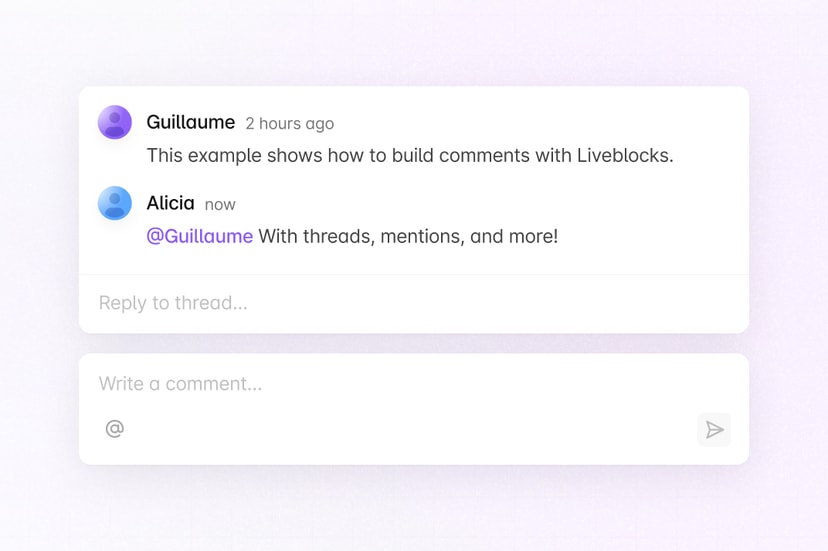
Commenting
Use useThreads to retrieve
each thread in the current room, and render them with the default
Thread component. Replies,
emoji reactions, editing, and deleting are all built in, and every change
appears in realtime for other users. Add a
Composer to create new
threads.
The default components are customizable with CSS, and for fully custom interfaces you can combine hooks with primitives. Learn more under Comments.
Contextual comments
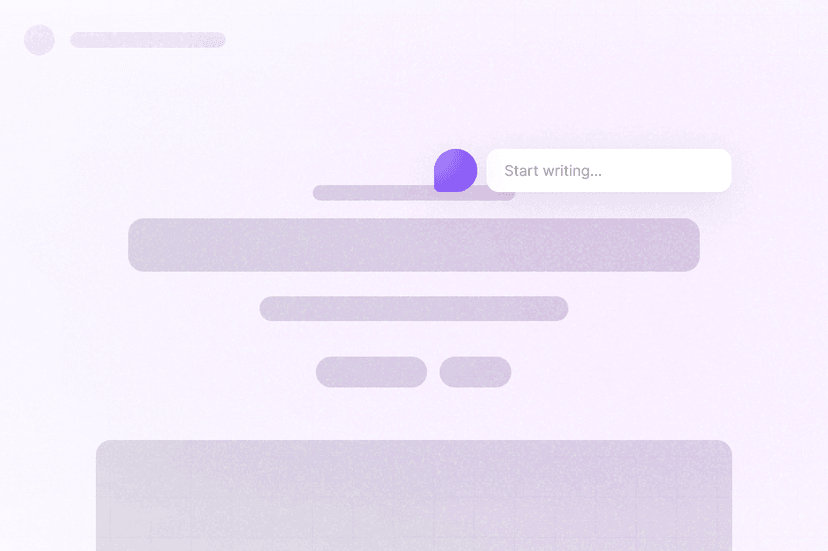
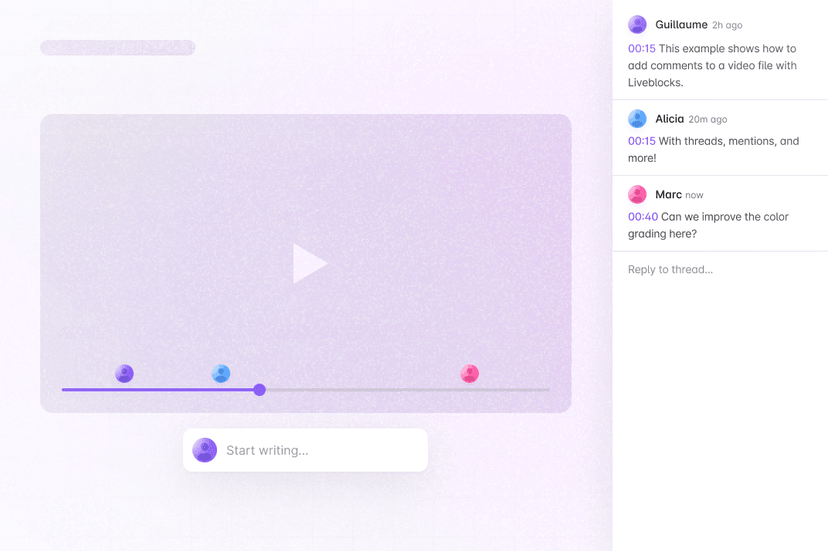
Threads become contextual when you store placement data in thread metadata, for example a cell ID in a table, a timestamp in a video, or coordinates on a canvas. Pass metadata when creating a thread, then read it back from each thread to position it in your interface.
For canvas-style experiences, a
FloatingComposer
and CommentPin can
create and display threads at any point on the page. Learn more under
Metadata.
Mentions and groups
Liveblocks only stores user IDs, so you provide each user’s name and avatar with
resolveUsers,
and return matching IDs for the @ mention popup with
resolveMentionSuggestions.
Mentioned users automatically receive an inbox notification.
You can also mention whole teams at once, such as @everyone or @engineering,
by returning group mentions and creating managed groups with
Liveblocks.createGroup.
Learn more under
Users and mentions.
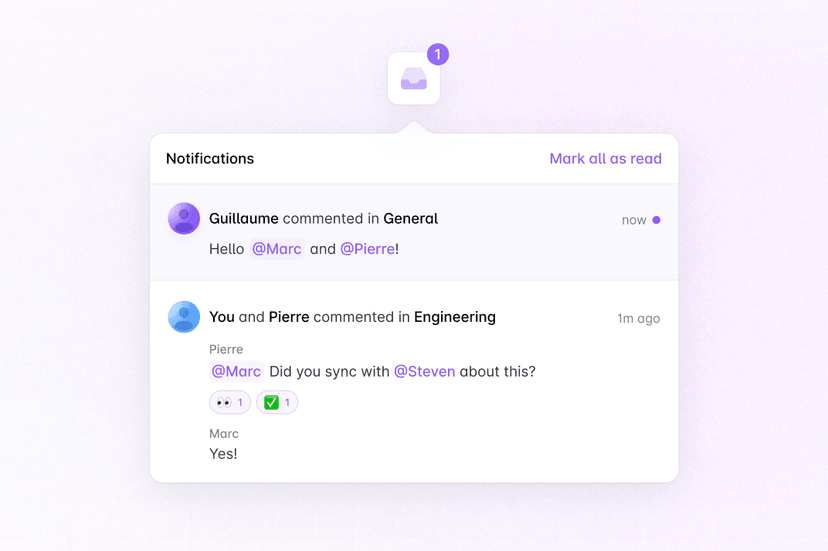
In-app notifications
Mentions and replies create inbox notifications, which are grouped per thread so
users aren’t flooded by busy discussions. Render them with
useInboxNotifications
and the
InboxNotification
component—these work anywhere in your app, even outside the room.
Show a badge on your inbox icon with
useUnreadInboxNotificationsCount.
Learn more under Notifications, or explore the
Notifications use case for a complete inbox, unread
badges, and user settings.
Email notifications
To reach users who are away from your app, enable the notification
webhook event in your dashboard. It’s sent
per user, batching unread activity together, up to every 30 minutes by default.
In your endpoint,
prepareThreadNotificationEmailAsReact
turns the event into ready-to-render email data.
The same webhook works for Slack, Microsoft Teams, and web push channels. Learn more under Email notifications.
Attachments
The Composer lets users
attach files and images to comments by default, uploading and storing them for
you, and the Thread
component displays them automatically. In custom interfaces, retrieve a
presigned file URL with
useAttachmentUrl.
Resolving and filtering
Each thread can be marked as resolved, and the default
Thread component includes a
resolve button, or you can call
useMarkThreadAsResolved
yourself. Combine resolved status with metadata in a
useThreads query to
build filtered views, such as a list of open urgent discussions.
Server-side commenting
Trusted backend processes can create and modify threads with
@liveblocks/node, for example
posting status updates from a CI pipeline or importing discussions from another
system. Write comment bodies from Markdown with
markdownToCommentBody.
Every Comments feature is also available through the REST API.
Agentic commenting
To let AI agents leave feedback, generate the comment text with AI, then use the
same server-side APIs shown under
Server-side commenting to post it. Give the agent its
own user ID, and return its name and avatar from
resolveUsers
so it appears in threads like any other user.
Because the thread stores metadata, the AI’s feedback appears contextually in your app, exactly like a human comment. Learn more under agentic users.
Permissions
Comments has its own permission scopes, so you can allow read-only users to
still join discussions. For example, viewers of a document can be given
comments:write access while keeping the content itself read-only. This can be
set when creating or modifying a room, for example with
Liveblocks.createRoom.
Threads can also be created with visibility: "private", enabling internal
team-only discussions alongside public comments in the same room. Read
how to add private commenting,
or learn more under
Permissions.
Examples
Explore complete examples that combine the features described above.