AI activity feed
Show your users what AI agents are doing in your app, as it happens. With Liveblocks you can build a multiplayer activity feed that streams each agent’s events in realtime, updates entries live as work progresses, keeps a permanent history, and notifies users when an agent finishes or needs input.
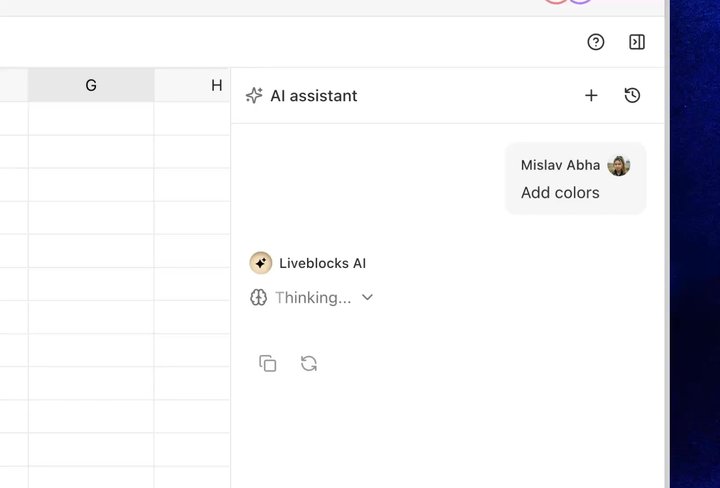
AI activity feed in the AI Slideshow example
Features
- Realtime activity feed: Render a persistent stream of agent events with hooks.
- Publishing activity: Append events from your back end, workflows, or any language.
- Streaming status updates: Update a live entry as an agent moves through each stage.
- AI presence: Show agents as online collaborators while they work.
- Multiple agents and runs: Give each agent or run its own feed and filter by metadata.
- Activity history: Keep every event and load older activity in pages.
- Notifications: Notify users when an agent completes a task or needs a decision.
- Permissions: Control who can read and publish activity.
Get started
Choose the features you need. Each guide uses Next.js and can be combined with the others.
Implementation
This is an overview of how each feature can be implemented. Activity events are stored in Feeds, part of Sync. Each agent or run publishes messages to a feed, and each message holds JSON data whose schema you define. Use Presence for the agent’s live in-room status and Notifications to reach users who are away.
Realtime activity feed
Read a feed with
useFeedMessages and
render each event with your own components. Events are persistent and delivered
in realtime, so users watching the feed see new activity instantly, and the full
history is still there when they reload.
Feeds is headless, meaning it stores and syncs your event data, but you handle the rendering and design. Learn more under the Feeds overview.
Publishing activity
Your agent’s back end appends events with
Liveblocks.createFeedMessage.
Publish one event per meaningful step, such as a search performed, a file
edited, or a tool called, and connected clients receive each one in realtime.
Events can also be published from workflow tools such as the Liveblocks n8n integration, or from Python and any other language with the REST API.
Streaming status updates
Long-running steps shouldn’t sit frozen in the feed. Create an event when a step
starts, then update the same message with
Liveblocks.updateFeedMessage
as the agent progresses. Every connected user sees the entry change live, from
“thinking” through to “complete”.
The same pattern streams generated text token by token into one entry, as shown in the chat use case.
AI presence
The feed records what an agent has done, while
Presence shows that it’s working right now.
Publish the agent’s live state with
Liveblocks.setPresence
when a run starts, and remove it when the run ends.
The agent then appears in
useOthers like any human, so
existing AvatarStack
components and online indicators show AI activity with no extra UI. Learn more
under the agentic users use case.
Multiple agents and runs
Each room can contain many feeds, so give each agent, task, or run its own.
Attach metadata when creating a feed with
Liveblocks.createFeed,
then list and filter runs in your UI with
useFeeds.
Learn more under filtering feeds.
Activity history
Every event is saved permanently, so users who reconnect can audit exactly what
an agent did while they were away. Long histories load in pages, as
useFeedMessages
returns up to 50 events by default, with pagination controls for loading earlier
activity.
Learn more under paginating feed messages.
Notifications
Agents often finish work, or need a decision, while users are away. Trigger a
custom notification with
Liveblocks.triggerInboxNotification
when a run completes, and render it in an in-app inbox or deliver it by email.
Learn more under the inbox use case and our Notifications overview.
Permissions
Each activity feed is contained inside a room in your Liveblocks app, and Feeds
has its own permission scopes. Users watching agent activity only need
feeds:read, while only your back end publishes events. This can be set when
modifying or creating a room, for example with
Liveblocks.createRoom.
Server-side calls with a secret key are not limited by a user’s permissions, so agents can always publish. More complex controls can be set too, learn more under Permissions.
Examples
Explore complete examples that combine the features described above.