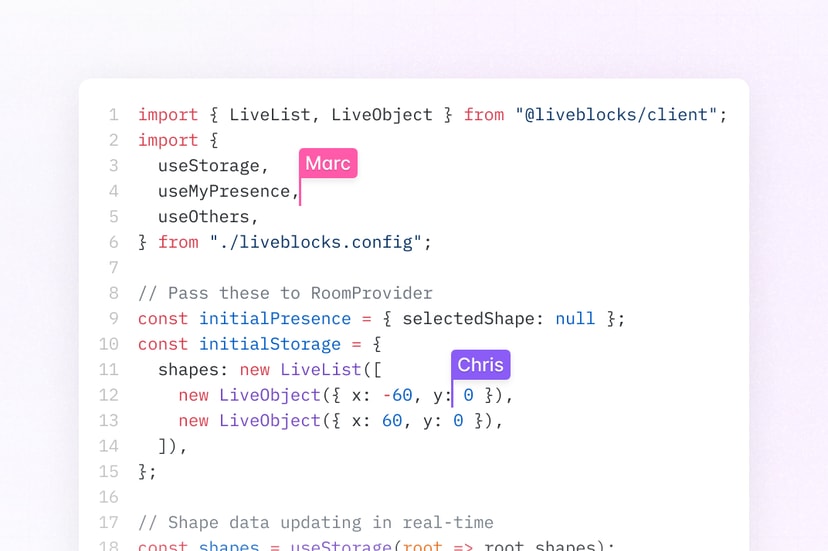
Code editor
Create a collaborative code editor with Liveblocks. Synchronize code between users with character-level precision, show remote carets and selections, edit files with AI, and restore previous versions.
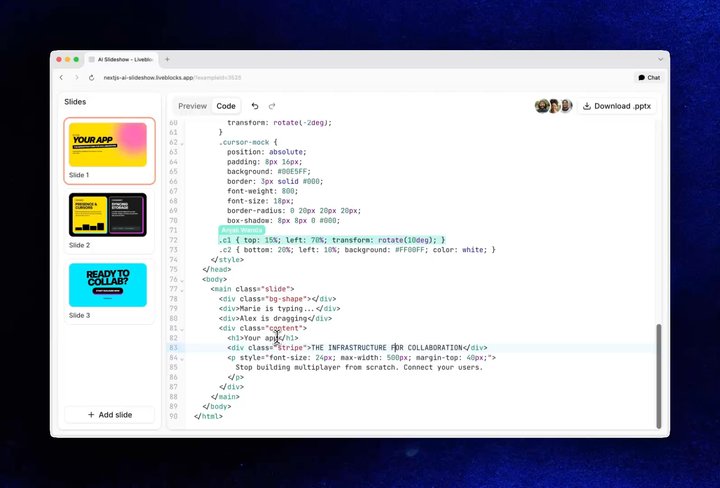
Code editing in the AI Slideshow example
Features
- Realtime collaboration: The code file is permanent and updates in realtime for connected users.
- Presence: Show remote carets, selections, avatar stacks, and agent activity.
- Server-side editing: Modify documents from your back end, and watch them update in realtime.
- Agentic editing: Generate and apply code changes with AI agents.
- Version history: Save, preview, and restore file versions using manual or automatic snapshots.
- Multiplayer undo/redo: Each user can independently undo and redo their own changes.
- Comments: Attach review discussions to the code.
- Permissions: Control which users can read and edit the file.
Get started
Choose a starting point for your code editor.
Implementation
This is an overview of how each feature can be implemented using the
@liveblocks/codemirror package.
Code files are stored in Sync and live selections are
broadcast using Presence.
Realtime collaboration
Using
createLiveblocksSyncPlugin,
you can set up a CodeMirror editor that stores your code as a
LiveText using
Sync. Local edits are written to Sync, remote edits are
applied to the editor, and concurrent changes are merged character-by-character.
Multiple code files can be stored in a single room by passing different
LiveText values. Learn more under
Sync integrations and
Storage.
Presence
Broadcast each user’s caret and selection with
createLiveblocksPresencePlugin.
Remote carets are colored with each user’s
info.color, and
positions stay stable across concurrent edits.
To show who’s currently in the file, add the ready-made
AvatarStack component,
or build custom presence UI with
useOthers. Learn more under
Presence.
Server-side editing
Trusted server processes can edit the code with
Liveblocks.mutateStorage,
using the same LiveText API
as the client. The mutation targets the exact document the editor syncs with,
and connected users see the change in realtime.
Learn more under Server-side editing.
Agentic editing
To allow AI agents to modify your code, generate your changes with AI then use
mutateStorage to apply
them. To show that AI is working in your app use
setPresence
to show it working—your agent will appear in Presence alongside
humans. Finally, remove the agent’s presence to indicate that the agent is no
longer working.
Additionally, you can use Feeds to store AI workflow state, and to pass agent status updates to the UI. Learn more under Agentic editing.
Version history
Create version snapshots before major changes, such as agentic edits, then
preview and restore them. Use
useHistoryVersions
to list versions,
useHistoryVersionStorageData
to build a read-only preview, and
useRestoreToStorageVersion
to restore the complete file as one synchronized change.
Automatic versions can be enabled in the dashboard, and meaningful versions can
be created from a backend with
Liveblocks.createVersionHistorySnapshot.
Learn more under Version history.
Multiplayer undo/redo
createLiveblocksSyncPlugin
wires the editor’s standard keyboard shortcuts, such as Mod-z and Mod-y, to
the room’s history, so each user can independently undo and redo their own
changes. Connect the same history to custom buttons with
useUndo,
useRedo,
useCanUndo, and
useCanRedo.
Learn more under Multiplayer undo/redo.
Comments
Add review discussions with Comments by attaching a
line number to each thread’s metadata. Create threads with the ready-made
Composer component, then
list them beside the editor with
useThreads and
Thread.
Learn more under Comments.
Permissions
Each code file is contained inside a room in your Liveblocks app, and permission
groups can set access to the file. For example, your file may have an editor
group and a viewer group. This can be set when modifying or creating a room, for
example with
Liveblocks.createRoom.
More complex controls can be set too, learn more under Permissions.
Examples
Explore complete implementations in our example gallery.