Flowchart
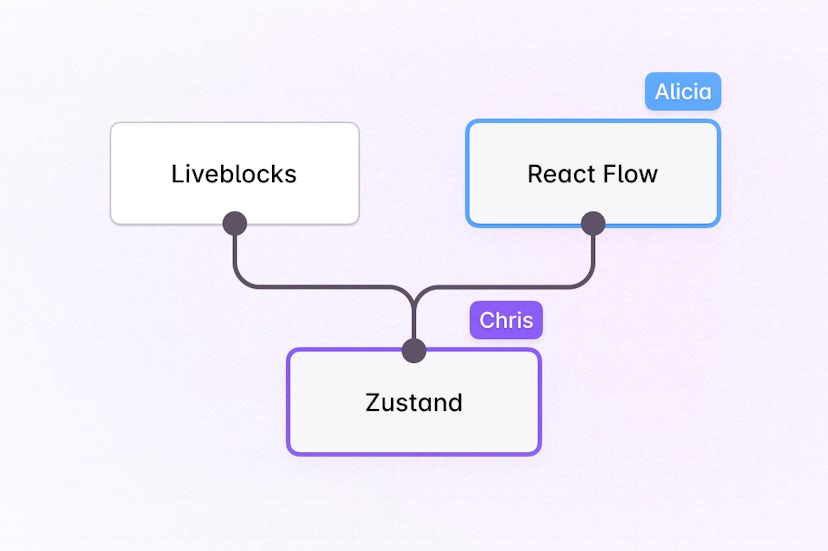
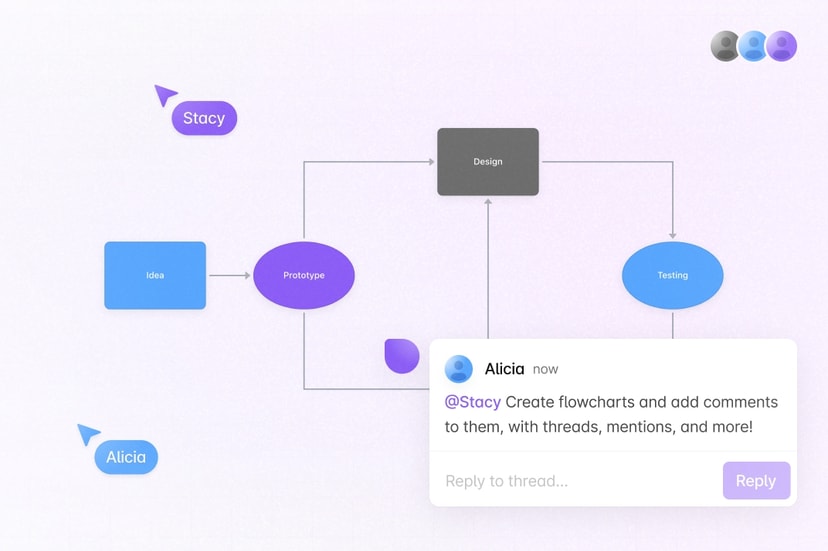
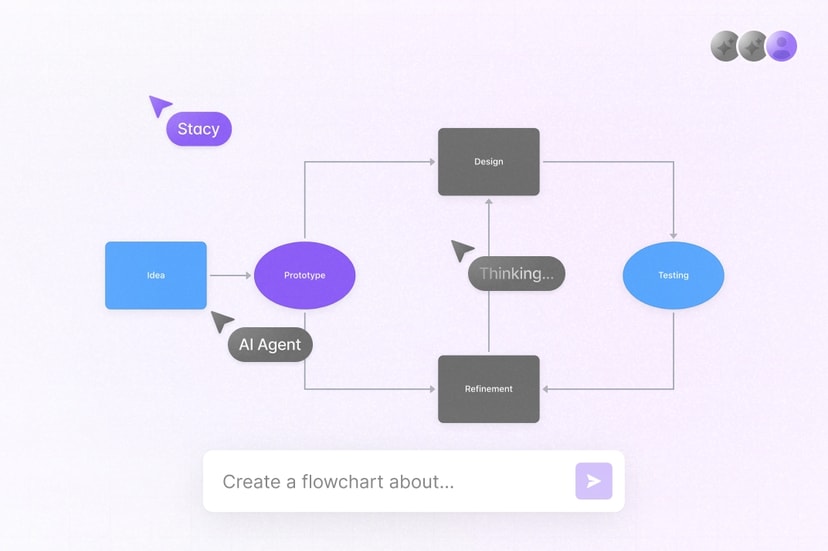
With Liveblocks you can create a collaborative flowchart, workflow builder, or node-based editor. Synchronize nodes and edges, show live cursors, add multiplayer undo/redo, and modify diagrams with AI. Get started with our React Flow integration, or build your own flowchart using primitives.
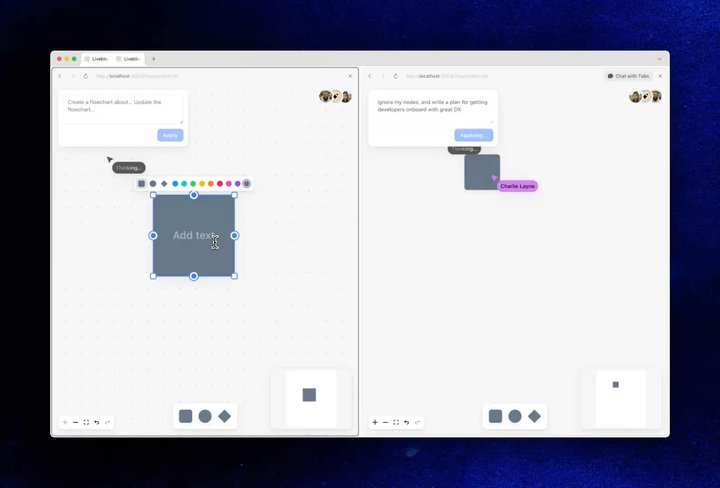
Multiplayer editing in the Collaborative Flowchart AI example
Features
- Realtime collaboration: Synchronize nodes, edges, positions, and custom data between users.
- Presence: Show live cursors, avatar stacks, and active selections.
- Server-side editing: Let trusted backend processes read and modify the diagram.
- Agentic editing: Let AI agents generate and apply diagram changes.
- Version history: Save, preview, and restore complete diagram states.
- Multiplayer undo/redo: Give each user an independent history of their diagram changes.
- Comments: Attach review discussions to nodes or positions in the flowchart.
- Permissions: Control which users can view and edit the diagram.
Get started
Choose a starting point for your flowchart.
Implementation
This is an overview of how each feature can be implemented using our
@liveblocks/react-flow package.
When using another flowchart library, build the same features directly with
Sync.
Realtime collaboration
Use
useLiveblocksFlow
to turn React Flow into a controlled multiplayer diagram. The hook stores nodes
and edges in Sync, then provides the change handlers React Flow needs for
moving, connecting, updating, and deleting them. Deleting a node and its edges
through onDelete is synchronized as one action.
Custom nodes and edges work as they normally do in React Flow, and their data
properties are deeply synchronized by default, so that concurrent changes to
different properties can merge. Additionally, you can
define values as local-only
and
add multiple diagrams to a room.
Presence
Render Cursors inside
ReactFlow to show each collaborator’s pointer. It stores temporary positions
in Presence and converts them through the React
Flow viewport as users pan and zoom. Add
AvatarStack outside the
flow to show everyone currently in the room.
Configure
resolveUsers
to provide names and colors for the cursors.
Server-side editing
Trusted server processes can edit the flowchart from the back end using
mutateFlow. The
callback exposes React Flow nodes and edges rather than Sync primitives, and
connected users receive each change in realtime.
Discover methods for modifying the flowchart in the MutableFlow API reference, or read Server-side editing for the general backend workflow.
Agentic editing
To allow AI agents to modify your flowchart, generate your changes with AI then
use mutateFlow to
apply them. To show that AI is working in your app use
setPresence
to show it working—your agent will appear in Presence alongside
humans. Finally, remove the agent’s presence to indicate that the agent is no
longer working.
Additionally, you can use Feeds to store AI workflow state, and to pass agent status updates to the UI. Learn more under Agentic editing.
Version history
Create versions before publishing a workflow, importing nodes, or allowing an
agent to restructure the diagram. Use
useHistoryVersions
to list versions,
useHistoryVersionStorageData
to build a read-only preview, and
useRestoreToStorageVersion
to restore the complete flow as one synchronized change.
Automatic versions can be enabled in the dashboard, and meaningful versions can
be created from a backend with
Liveblocks.createVersionHistorySnapshot.
Read Version history for the complete
preview and restore flow.
Multiplayer undo/redo
useLiveblocksFlow automatically groups diagram changes into useful history
steps. Dragging or resizing a node produces one undo step, and deleting a node
with its connected edges is undone together. Connect this history to your
toolbar with useUndo,
useRedo,
useCanUndo, and
useCanRedo.
Each user’s history is independent and does not reverse another user’s work. Read Multiplayer undo/redo for the underlying history behavior.
Comments
Attach Comments to a node ID or a point in flow
coordinates with thread metadata. For node comments, store normalized x and
y values alongside the node ID so the pin remains attached as the node moves
or resizes. A
FloatingComposer
can create the thread from a pin.
Use useThreads to render
existing threads, resolve their metadata against the latest node positions, and
apply the React Flow viewport transform. The
Collaborative Flowchart Builder
example contains a complete implementation.
Permissions
Each flowchart is contained inside a room in your Liveblocks app, and permission
groups can set access to the diagram. For example, your flowchart may have an
editor group and a viewer group. This can be set when modifying or creating a
room, for example with
Liveblocks.createRoom.
More complex controls can be set too, learn more under Permissions.
Examples
Explore complete implementations with different levels of flowchart behavior.