Canvas
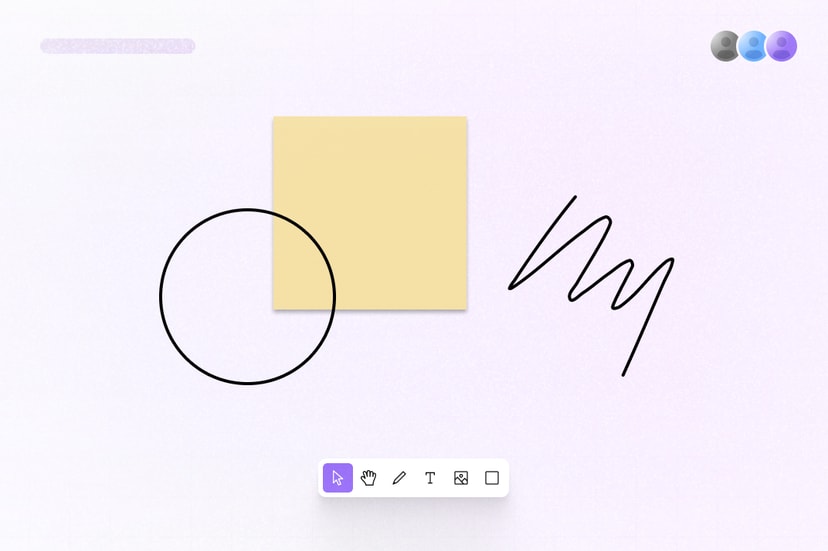
Create a collaborative canvas, whiteboard, or design tool with Liveblocks. Start with a ready-made canvas, or create something custom. Add draggable objects, show live cursors, upload images, use version history, and add multiplayer undo/redo.
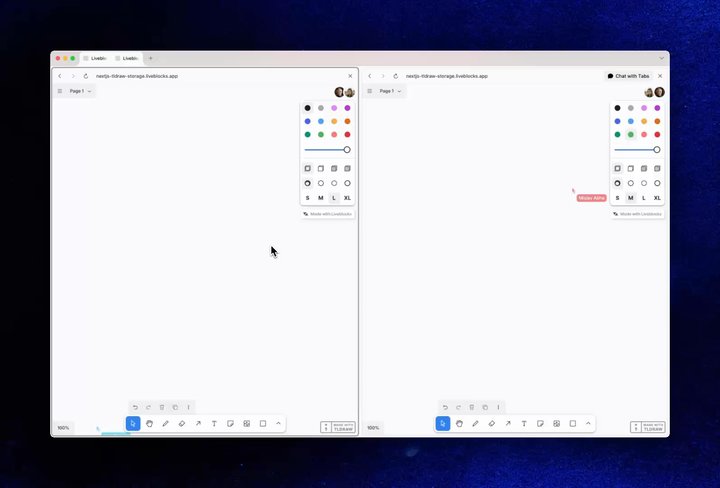
Multiplayer editing in the Tldraw Whiteboard example
Features
- Realtime collaboration: Canvas state is permanent and updates in realtime for connected users.
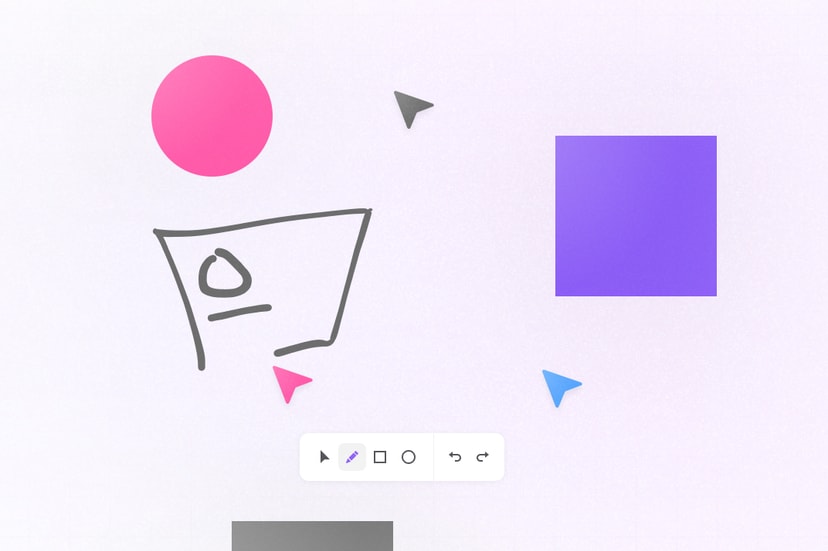
- Presence: Show live cursors, avatar stacks, realtime selections, and agent activity.
- Server-side editing: Modify the canvas from a trusted back end.
- Agentic editing: Generate and apply validated canvas changes with AI.
- Version history: Save, preview, and restore canvas state from snapshots.
- Multiplayer undo/redo: Each user can independently undo and redo their own changes.
- File uploads: Upload images and other assets to the shared canvas.
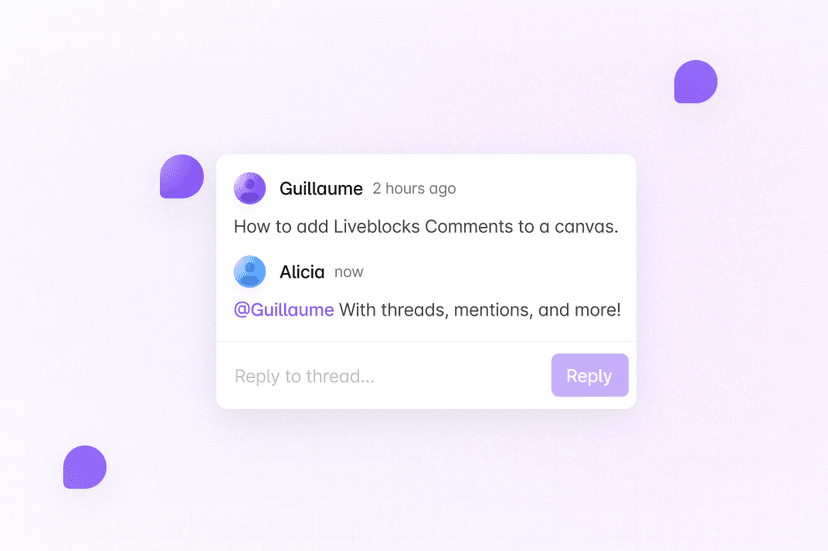
- Comments: Add draggable commenting threads to the canvas.
- Permissions: Control which users can read and edit the canvas.
Get started
Choose a starting point for your canvas.
Implementation
This is an overview of how each feature can be implemented—though if you’re
using a ready-made integration such as Tldraw, some of these features may work
out of the box. Store persistent objects, layer order, and
LiveFile references in Sync.
Keep temporary cursors, selections, and active tools in
Presence, and use
Comments for discussions attached to canvas
coordinates or objects.
Realtime collaboration
Using Sync, you can add realtime collaboration
to your canvas. One way to build this is to store canvas objects in a
LiveMap, keyed by stable IDs,
and create each shape in the canvas as a
LiveObject. With
useStorage you can render
each shape on your canvas.
To update shapes, add mutations with
useMutation, for example
for adding, moving, and deleting shapes. Mutations are applied optimistically
and synchronized through Sync, including every position update while a shape is
dragged.
For smoother motion, set the
throttle on
LiveblocksProvider to 16, making your canvas run at 60 frames per second.
Learn more about setting up a canvas in the custom canvas quickstart guide.
Presence
Using Presence, you can show live cursors,
avatar stacks, realtime selections, and agent activity on your canvas. To get
started, import our ready-made
AvatarStack component.
To create live cursors, add
useOthers and
useUpdateMyPresence
to get and set user cursor positions on the canvas. Make sure to use a coordinate
system that works with your canvas, for example screen coordinates.
Learn more about setting up presence in the Presence quickstart guide.
Server-side editing
Trusted server processes can edit a canvas with
Liveblocks.mutateStorage,
and changes will be applied and synchronized in realtime. The mutation uses the
same Storage data types as the client, and connected users receive the result in
realtime.
Read Server-side editing for validation, versioning, bulk mutations, and other document formats.
Agentic editing
To allow AI agents to modify your canvas, generate your changes with AI then use
mutateStorage to apply
them. To show that AI is working in your app use
setPresence
to show it working—your agent will appear in Presence alongside
humans. Finally, remove the agent’s presence to indicate that the agent is no
longer working.
Additionally, you can use Feeds to store AI workflow state, and to pass agent status updates to the UI. Learn more under Agentic editing.
Version history
Create version snapshots, manually or automatically, list old versions, and
restore to a specific version. Use
useHistoryVersions
to list versions,
useHistoryVersionStorageData
to render a read-only preview, and
useRestoreToStorageVersion
to restore the complete canvas Storage state as one synchronized change.
You can also manually create snapshots with
Liveblocks.createVersionHistorySnapshot,
and use
ready-made components
to render the list of snapshots and restore to a specific version. Read
Version history to learn more.
Multiplayer undo/redo
Each user can independently undo and redo their own changes with
useUndo and
useRedo. Additionally,
useCanUndo and
useCanRedo can be used to
disable the undo and redo buttons when the user is at the beginning or end of
the undo/redo stack.
History can also be paused, resumed, and disabled. Read Multiplayer undo/redo to learn more.
File uploads
You can upload images, videos, and other binary assets to the canvas with
useUploadFile. It
uploads the file to the current room and you can then attach this to your data
tree.
Learn more under File uploads.
Comments
Add commenting to your canvas with our Comments
product by attaching x/y coordinates to thread metadata.
useThreads allows you to
loop through existing threads and render them, while the
FloatingThread and
CommentPin components
render a thread at the given coordinates.
Follow the draggable canvas Comments quickstart to learn how to set up placement mode, z-index management, and draggable thread components.
Permissions
Each canvas document is a room in your Liveblocks app, and permission groups can
set access to the canvas. For example, your canvas may have an editor group and
a viewer group. This can be set when modifying or creating a room, for example
with Liveblocks.createRoom.
More complex controls can be set too, learn more under Permissions.
Examples
Explore complete implementations in our example gallery.