Slideshow
Create a collaborative slideshow, presentation editor, or pitch deck with Liveblocks. Synchronize slides and their content, show live cursors and active selections, follow a presenter, upload media, and let AI edit the deck alongside your users.
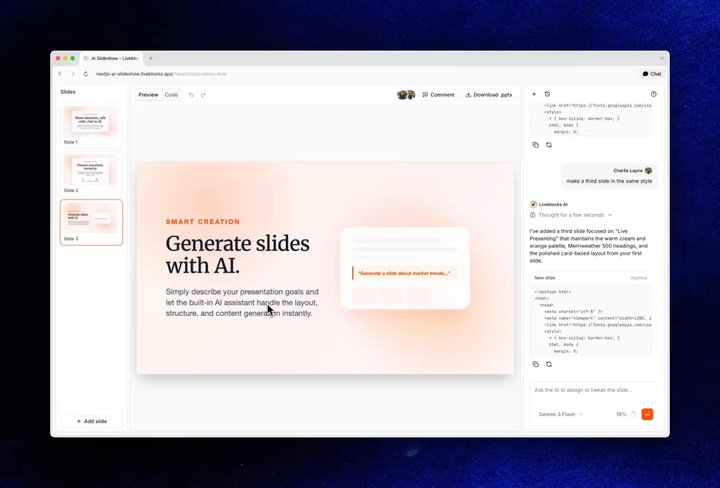
Multiplayer editing in the AI Slideshow example
Features
- Realtime collaboration: Synchronize slide order, content, and layout between users.
- Presence: Show live cursors, avatar stacks, active slides, and selected elements.
- Presentation mode: Let everyone follow a presenter through the deck in realtime.
- Server-side editing: Let trusted backend processes create, rewrite, and rearrange slides.
- Agentic editing: Let AI agents generate and apply slide content.
- Version history: Save, preview, and restore complete versions of the deck.
- Multiplayer undo/redo: Give each user an independent history of their changes.
- File uploads: Add images, videos, and other uploaded assets to slides.
- Comments: Attach feedback to a slide or a specific point on its surface.
- Permissions: Control who can view, present, and edit the slideshow.
Get started
Choose a starting point for your slideshow.
Implementation
This is an overview of how each feature can be implemented. Store permanent slide content, order, and layout in Sync. Keep temporary cursors, selections, and presentation state in Presence. Use Comments for review discussions and Feeds for durable AI workflow state.
Realtime collaboration
Store slide order in a
LiveList, and store slides
by stable ID in a LiveMap.
Each slide can be a
LiveObject containing
layout data and LiveText for
collaborative text. This lets one user rearrange the deck while another edits a
slide, without either change overwriting the other.
Read the deck with
useStorage and update it
with useMutation.
Liveblocks applies changes optimistically and resolves simultaneous edits for you. Read Storage to choose the right structure for each part of the deck.
Presence
Use Presence for information that only matters
while someone is connected, such as their cursor, active slide, selected
element, and editing mode. Publish local state with
useUpdateMyPresence
and render collaborators with
useOthers.
Add AvatarStack to the
editor toolbar to show everyone currently in the room.
Presentation mode
Presentation mode is temporary, so store the presenter’s status and active slide
in presence instead of the saved deck. Viewers can find the presenter with
useOthers and immediately
follow the current slide, including when they join midway through a
presentation.
Only let users with presentation access set isPresenting, and decide what
happens if the current presenter disconnects. For example, return viewers to
independent navigation or transfer control to another editor.
Server-side editing
Trusted server processes can edit a slideshow from the back end with
Liveblocks.mutateStorage.
The server reads and writes the same Sync data as connected users, so new
slides, rewrites, and reordered sections appear in realtime.
Learn more under Server-side editing.
Agentic editing
To allow AI agents to modify your slideshow, generate your changes with AI then
use mutateStorage to
apply them. To show that AI is working in your app use
setPresence
to show it working—your agent will appear in Presence alongside
humans. Finally, remove the agent’s presence to indicate that the agent is no
longer working.
Additionally, you can use Feeds to store AI workflow state, and to pass agent status updates to the UI. Learn more under Agentic editing.
Version history
Create versions before publishing a deck, importing slides, or allowing an agent
to rewrite a large section. Use
useHistoryVersions
to list versions,
useHistoryVersionStorageData
to build a read-only preview, and
useRestoreToStorageVersion
to restore the complete deck as one synchronized change.
Automatic versions can be enabled in the dashboard, and meaningful versions can
be created from your backend with
Liveblocks.createVersionHistorySnapshot.
Learn more under Version history.
Multiplayer undo/redo
Use useHistory to connect
undo and redo to the slideshow toolbar. Each user’s history is independent, so
undoing a slide edit or reorder does not reverse another collaborator’s work.
Pause and resume history while dragging or resizing an element so the complete
gesture becomes a single undo step.
Learn more under Multiplayer undo/redo.
File uploads
Upload images, videos, and other binary assets with
useUploadFile, then save
the returned LiveFile in the slide’s
Sync data. Resolve the reference for display with
useFileUrl.
Store reusable uploaded assets once and reference them from each slide that uses them instead of uploading duplicate files.
Comments
Use Comments for review discussions. Store a stable
slideId and percentage-based x and y coordinates in thread metadata so a
pin remains attached to the same point when the 16:9 slide surface is resized.
Create threads with
FloatingComposer
and render existing threads with
useThreads.
The canvas Comments quickstart shows the same coordinate-based placement pattern on a draggable surface.
Permissions
Each presentation is contained inside a room in your Liveblocks app, and
permission groups can set access to it. For example, your slideshow may have an
editor group and a viewer group. This can be set when modifying or creating a
room, for example with
Liveblocks.createRoom.
More complex controls can be set too, learn more under Permissions.
Examples
Explore a complete slideshow with multiplayer editing, AI-generated slides, live cursors, Comments, and feeds.