Chat
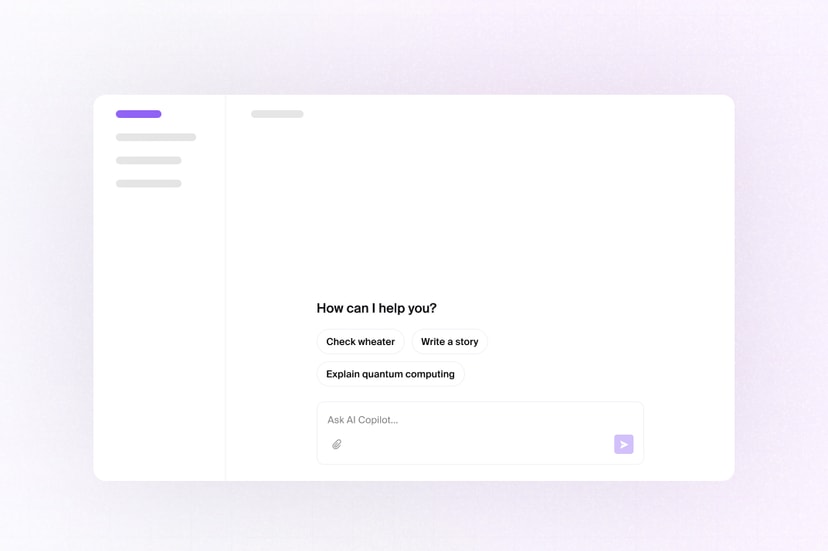
With Liveblocks you can build realtime chat interfaces into your application, allowing humans and agents to work together. Chats can be multiplayer, and AI responses can be streamed in as they’re generated. Additionally, allow AI to edit your Sync documents through chat, alongside humans.
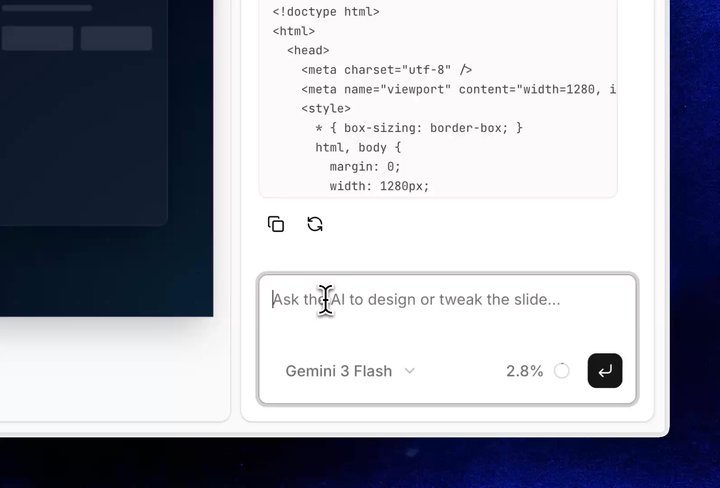
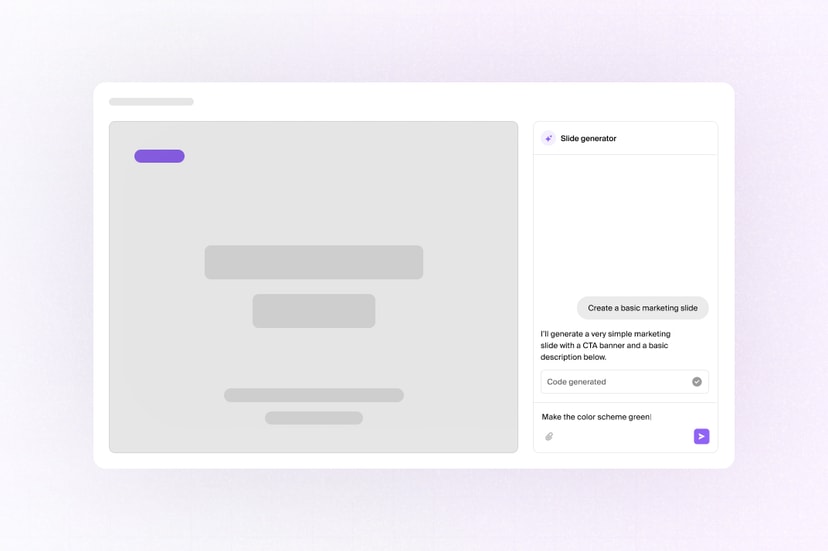
Multiplayer chat in the AI Slideshow Generator example
Features
- Realtime messaging: Send persistent messages that appear instantly for every participant.
- UI libraries: Render messages with AI Elements, assistant-ui, shadcn/ui, or your own components.
- Server-side messages: Append system and automation messages from your back end.
- AI chat: Let AI read the conversation and reply alongside humans.
- Streaming AI replies: Stream responses token by token into a persistent message.
- Agentic editing: Ask AI in the chat to edit your app’s documents, without conflicts.
- Multiple conversations: Model channels, direct messages, and chats as feeds.
- Message history: Load earlier messages in pages as users scroll back.
- Typing indicators and presence: Show who’s online and typing, including AI agents.
- Notifications: Reach users who are away with in-app and email notifications.
- Permissions: Control who can read and send messages in each conversation.
Get started
Choose a starting point for your chat.
Implementation
This is an overview of how each feature can be implemented. Chat messages can be stored in Feeds, part of Sync—each conversation is a feed, and each message holds JSON data whose schema you define, meaning the same building blocks work for human chat, AI chat, and combinations of the two.
Realtime messaging
Read a conversation with
useFeedMessages and
send messages with
useCreateFeedMessage.
Messages are persistent and delivered in realtime, so every participant sees new
messages instantly, and the full conversation is still there when they
reconnect.
Messages can also be updated and deleted, and each change syncs instantly. Learn more under the Feeds overview.
UI libraries
Feeds is headless—it stores and syncs your message data, but you own the UI and rendering. This means that you can easily integrate it into popular chat component libraries such as AI Elements, assistant-ui, shadcn/ui, or your own design system.
The Realtime AI Elements Chats example contains a complete AI Elements integration, with streaming replies, reasoning, tool calls, and typing indicators.
Server-side messages
Back end processes can append messages with
Liveblocks.createFeedMessage,
which is useful for sending AI replies, system events, workflow
status, and more. Connected clients receive each message in realtime, through
the same hooks used for human messages.
Messages can also be sent from workflow tools such as the Liveblocks n8n integration, or with the REST API.
AI chat
Let AI take part in a conversation by triggering your back end when a user sends
a message, generating a reply from the conversation history, then appending it
with
Liveblocks.createFeedMessage.
Use
Liveblocks.setPresence
before and after generation so the agent appears online and typing alongside
humans.
The same pattern works for humans and AI in one feed, for AI-only conversations, and for multiple agents replying in the same channel.
Streaming AI replies
Long AI responses shouldn’t arrive all at once. To stream a reply token by
token, create an empty assistant message first, then repeatedly update it with
Liveblocks.updateFeedMessage
as text is generated—every connected user sees the message grow in realtime,
with no extra client wiring.
All connected users, and users that load the page when a response is generating, will see the exact message stream in realtime.
Agentic editing
Chat becomes more powerful when AI can take action in your app, not just reply.
If you have a realtime app set up with Sync, you can
generate results with AI and apply them to the room’s realtime document with
Liveblocks.mutateStorage.
Edits appear instantly and merge with changes users are making at the same time
using conflict resolution.
Learn more under Agentic editing.
Multiple conversations
Each room can contain many chats, each a separate feed under the hood. With
useCreateFeed you can
create new chats and with
useFeeds you can list and
link to all created chats.
Using feed metadata you can filter and group chats by type, title, or other criteria.
Message history
Long conversations load in pages. useFeedMessages returns up to 50 messages by
default, along with pagination controls for loading earlier messages without
replacing the ones already rendered.
Learn more under paginating feed messages.
Typing indicators and presence
You can create live presence indicators for each chat, such as a typing
indicator or an avatar stack. With
useUpdateMyPresence
and useOthers you can pass
your typing state to Liveblocks, then check if any other users are currently
typing. Putting these two together enables you to create a simple realtime
typing indicator.
Agents published with setPresence in AI chat appear in useOthers
too, so the same indicator shows when AI is typing. Learn more in our
Presence overview.
Notifications
Users shouldn’t miss messages sent while they’re away—add an inbox to your app
and trigger a custom notification when the user has new messages to read. This
is possible using
Liveblocks.triggerInboxNotification,
alongside the
Notifications UI components.
Learn more in our Notifications overview.
Permissions
Each set of conversations is contained inside a room in your Liveblocks app, and
Feeds has its own permission scopes—give viewers feeds:read and participants
who can send messages feeds:write. This can be set when modifying or creating
a room, for example with
Liveblocks.createRoom.
Server-side calls with a secret key are not limited by a user’s permissions, so validate application permissions before posting on a user’s behalf. More complex controls can be set too, learn more under Permissions.
Examples
Explore complete examples that combine the features described above.