Forms
Create a multiplayer form with Liveblocks, for onboarding flows, RFP responses, intake questionnaires, or any document your users fill in together. Synchronize every field value, show who’s editing which field, prefill answers from your back end, and let AI complete fields alongside your users.
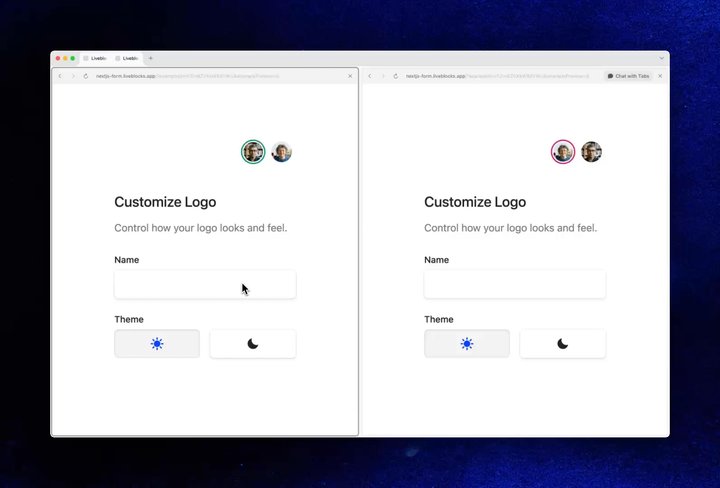
Collaboration in the Multiplayer form example
Features
- Realtime collaboration: Synchronize every field value between users.
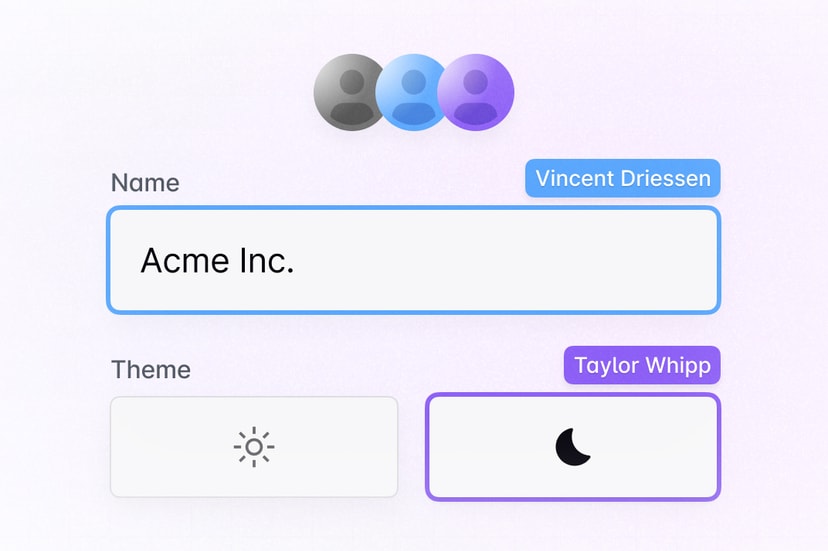
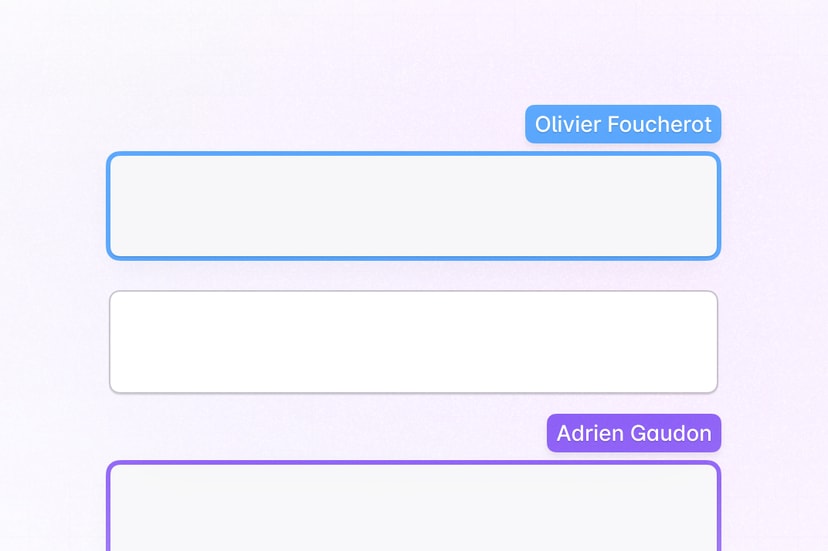
- Live field presence: Show who’s focusing and editing each field.
- Server-side editing: Prefill and update fields from trusted backend processes.
- Agentic editing: Let AI agents complete fields with validated values.
- Multiplayer undo/redo: Give each user an independent history of their changes.
- Comments: Attach review discussions to individual fields.
- Permissions: Control who can view and fill in the form.
Get started
Choose a starting point for your form.
Implementation
This is an overview of how each feature can be implemented. Store permanent field values in Sync. Keep temporary focus and selection state in Presence. Use Comments for review discussions on individual fields.
Realtime collaboration
Store the form’s answers in a
LiveObject, one property
per field. Changes to different fields merge automatically, so two people can
fill in different parts of the form at the same time without overwriting each
other. Read values with
useStorage and update them
with useMutation.
For long answers where several people may type in the same field simultaneously,
use LiveText so concurrent keystrokes
merge instead of replacing the whole value. Learn more under
Storage.
Live field presence
Show which field each collaborator is focusing, so people naturally avoid typing
in the same input. Focus is temporary, so store it in
Presence—publish it with
useUpdateMyPresence
and read collaborators with
useOthers.
Add AvatarStack at the
top of the form to show everyone currently filling it in, and configure
resolveUsers
to provide their names and colors.
Server-side editing
Trusted server processes can prefill or update the form with
Liveblocks.mutateStorage,
for example filling in known answers from your CRM when the form is created. The
server writes the same Sync data as connected users, so prefilled values appear
in realtime.
Learn more under Server-side editing.
Agentic editing
To let AI complete the form, generate validated values with AI, then use the
same mutation shown under Server-side editing to apply
them. Use
setPresence
before and after generation so the agent appears in Presence
alongside humans, focusing fields as it fills them in. Finally, remove the
agent’s presence to indicate that it’s no longer working.
Additionally, you can use Feeds to store AI workflow state, and to pass agent status updates to the UI. Learn more under Agentic editing.
Multiplayer undo/redo
Connect undo and redo to your form with
useUndo and
useRedo. Each user’s history
is independent, so undoing your own answer never reverses a change made by
someone else.
Learn more under Multiplayer undo/redo.
Comments
Reviewers often need to discuss an answer before it’s final. Attach
Comments to a field by storing its ID in thread
metadata, create threads with
Composer, and render each
field’s discussion next to it with
useThreads.
Learn more under the comments use case.
Permissions
Each form is contained inside a room in your Liveblocks app, and permission
groups can set access to it. For example, your form may have an editor group
that fills it in and a viewer group that can only review and comment. This can
be set when modifying or creating a room, for example with
Liveblocks.createRoom.
More complex controls can be set too, learn more under Permissions.
Examples
Explore complete examples that combine the features described above.