How to create a collaborative online whiteboard with React, Redux, and Liveblocks
In this 25-minute tutorial, we’ll be building a collaborative whiteboard app using React, Redux and Liveblocks. As users add and move rectangles in a canvas, changes will be automatically synced and persisted, allowing for a canvas that updates in realtime across clients. Users will also be able to see other users selections, and undo and redo actions.
This guide assumes that you’re already familiar with React and Redux. If you’re not using Redux, we recommend reading one of our dedicated whiteboard tutorials:
A live demo and the source code for this guide are in our examples.
Install Liveblocks into your project
Install Liveblocks packages
Create a new app with create-react-app:
Then run the following command to install the Liveblocks packages and Redux:
Connect to Liveblocks servers
In order to use Liveblocks, we’ll need to sign up and get an API key.
Create an account, then navigate to
the dashboard to find your public key. It should start
with pk_.
With a secret key, you can control who can access the room. it’s more secure but you need your own back-end endpoint. For this tutorial, we’ll go with a public key. For more info, see the authentication guide.
Create a new file src/store.js and initialize the Liveblocks client with your
public API key. Then add our
enhancer to your store
configuration.
And edit src/index.js to add the react-redux provider to your app:
Connect to a Liveblocks room
Liveblocks uses the concept of rooms, separate virtual spaces where people can collaborate. To create a multiplayer experience, multiple users must be connected to the same room.
Our enhancer is responsible to enter or leave a room when you dispatch
enterRoom or
leaveRoom.
In our main component, we want to connect to the Liveblocks room when the component does mount, and leave the room when it unmounts.
Create a canvas
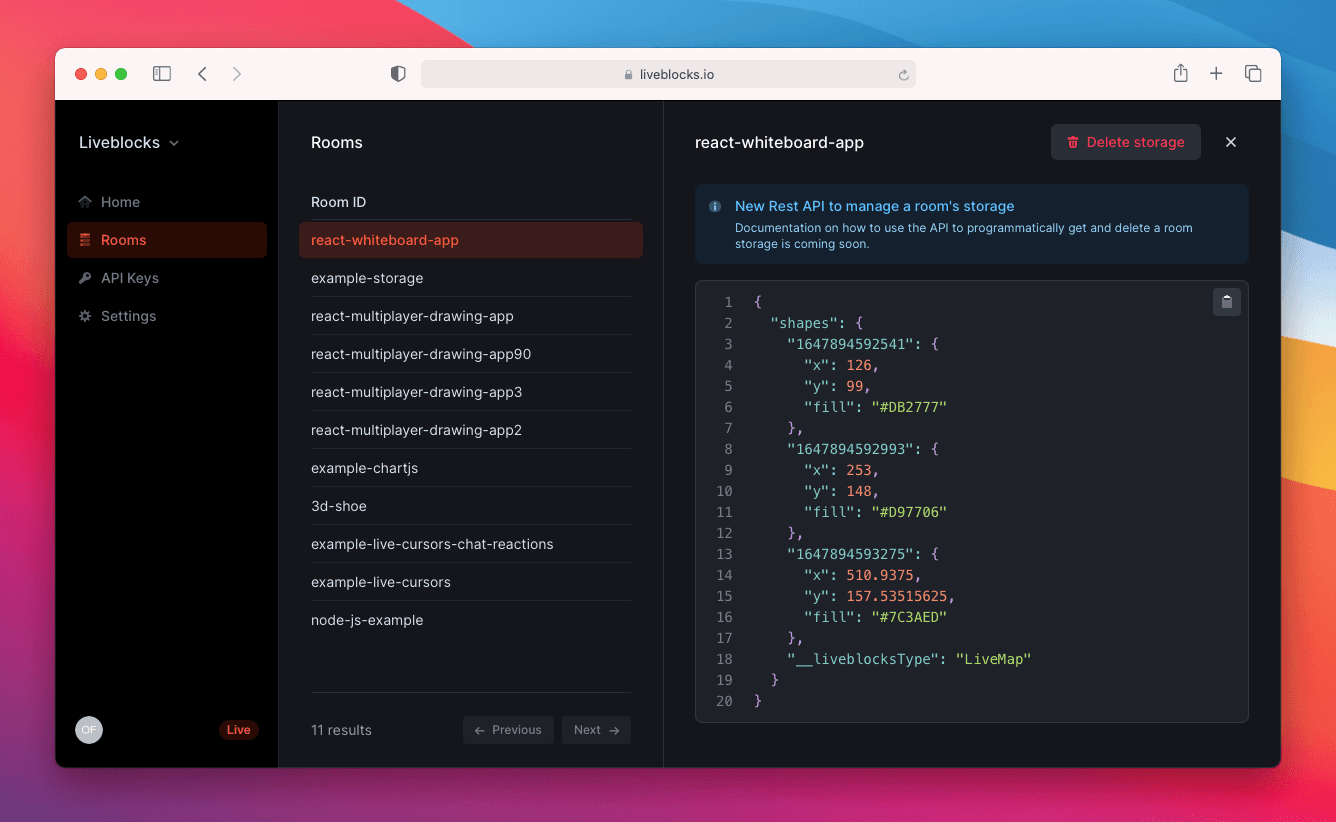
Whiteboard shapes will be stored even after all users disconnect, so we will use Storage to persist them.
Add a shapes property to your store, and configure the enhancer to sync and
persist them with Liveblocks.
To achieve that, we are going to use the enhancer option
storageMapping: { shapes: true }.
It means that the part of the state named shapes should be automatically
synced with Storage.
Afterwards, we draw the shapes in our canvas. To keep it simple for the tutorial, we are going to only support rectangle.
Place the following within src/App.css, and then you will be able to insert
rectangular shapes into the whiteboard.
Insert rectangles
Currently our whiteboard is empty, and there’s no way to add rectangles. Let’s create a button that adds a randomly placed rectangle to the board.
Add a new action to your store that randomly insert a rectangle on the board.
Then add a button to dispatch this action from the board.
Add selection
We can use Liveblocks to display which shape each user is currently selecting, in this case by adding a border to the rectangles. We’ll use a blue border to represent the local user, and green borders for remote users.
Any online user could select a shape, and we need to keep track of this, so it’s
best if each user holds their own selectedShape property.
Luckily, Liveblocks uses the concept of presence to handle these temporary states. A user’s presence can be used to represent the position of a cursor on screen, or in this case the selected shape in a design tool.
We want to add some data to our Redux store, selectedShape will contain the
selected shape id. selectedShape will be set when the user select or insert a
rectangle.
The middleware option
presenceMapping: { selectedShape: true }
means that we want to automatically sync the part of the state named
selectedShape to Liveblocks presence.
Update your App and Rectangle components to show if a shape is selected by
the current user or someone else in the room.
Delete rectangles
Now that users can select rectangles, we can add a button that allow deleting rectangles too.
Create a deleteShape action to remove the selected shape from shapes, and
then reset the user’s selection:
Move rectangles
Let’s move some rectangles!
To allow users to move rectangles, we’ll update the x and y properties of
the selected shape when a user drags it:
Multiplayer undo/redo
With Liveblocks, you can enable multiplayer undo/redo in just a few lines of code.
Add two buttons to the toolbar and bind them to
room.history.undo
and
room.history.redo.
These functions only impact modifications made to the room’s storage.
Pause and resume history
When a user moves a rectangle, a large number of actions are sent to Liveblocks and live synced, enabling other users to see movements in realtime.
The problem with this is that the undo button returns the rectangle to the last intermediary position, and not the position where the rectangle started its movement. We can fix this by pausing storage history until the move has completed.
We’ll use
history.pause to
disable adding any positions to the history stack while the cursors moves, and
then call
history.resume
afterwards.
Voilà! We have a working collaborative whiteboard app, with persistent data storage.
Summary
In this tutorial, we’ve learnt about the concept of rooms, presence, and others. We've also learnt how to put all these into practice, and how to persist state using storage too.
You can see some stats about the room you created in your dashboard.