How to add version history to your app
Version history lets users look back at previous versions of a document, and restore them when needed. In Liveblocks, a version is a snapshot of a room at a point in time—each snapshot captures both the room’s Storage and its Yjs document, and records when it was created and which users contributed to it. Because Tiptap, BlockNote, and Lexical use Yjs documents, they also support version history out of the box.
This guide shows you how to create versions, list them, and build version history for Storage and for Yjs.
Creating versions
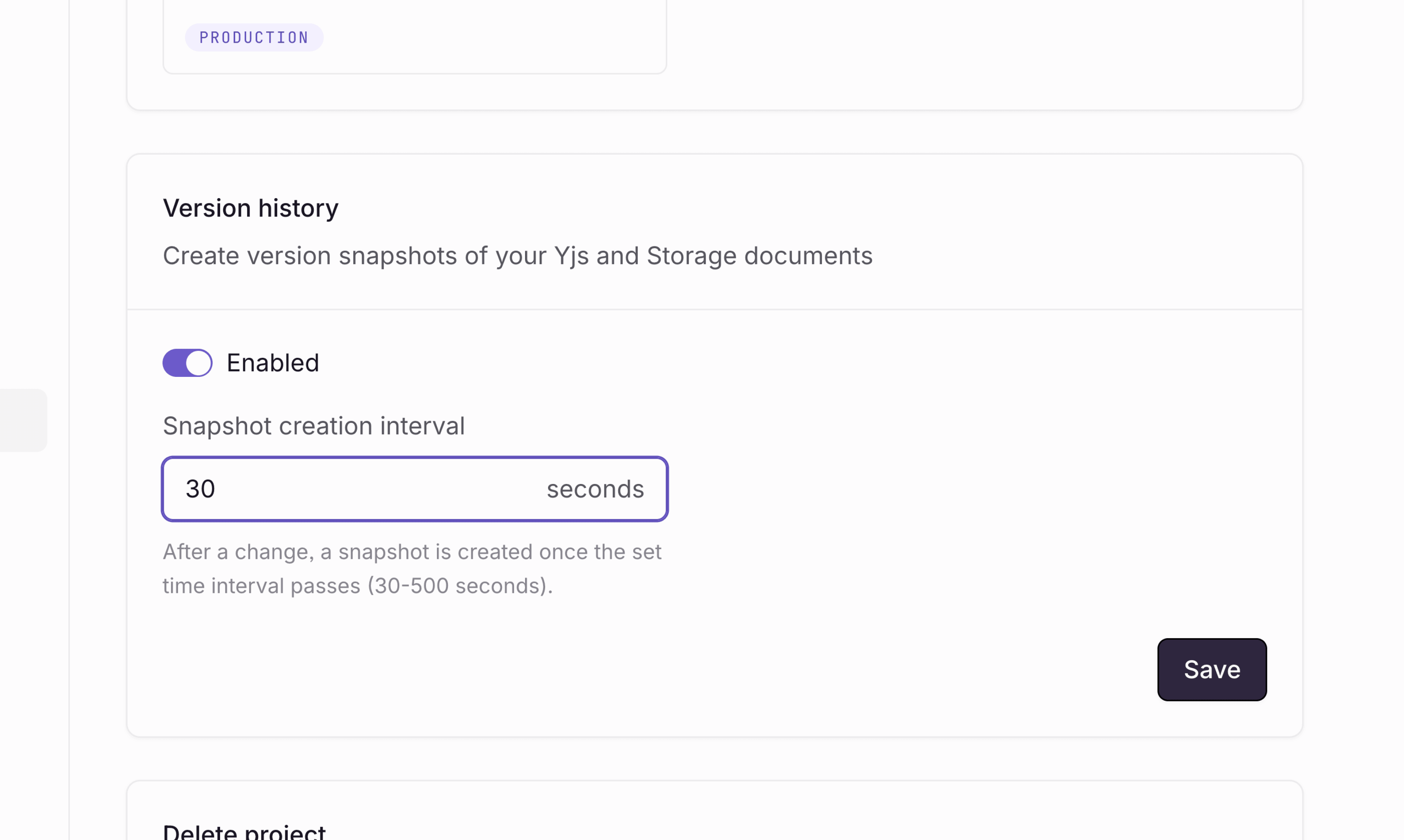
Versions can be created automatically by Liveblocks—enable this in the dashboard by navigating to a project, then “Settings”. On this page you can toggle the switch.
You can also create versions manually from your backend with
Liveblocks.createVersionHistorySnapshot.
A manual snapshot is useful for creating a version at a meaningful moment, for
example when a user clicks a Save version button.
If you are not using @liveblocks/node, you can use the
Create version history snapshot
REST API directly.
Each snapshot captures the Storage and Yjs documents together, so the same version can be used for both. However, previewing and restoring versions works differently for Storage and Yjs, as described below.
Version history for Storage
If your document is stored in Storage, you can list a room’s versions, preview any version’s data, and restore the room to it.
Listing Storage versions
List a room’s versions with
useHistoryVersions,
which returns them sorted from newest to oldest, and keeps them updated as new
versions are created. For Storage, build the list UI yourself—each version has a
creation date and its authors’ user IDs.
You can also list versions from the server with
Liveblocks.getVersionHistory
or the
Get version history
REST API.
Previewing a Storage version
useHistoryVersionStorageData
returns the Storage data for a version, reconstructed as a read-only
LiveObject. Because a
historic version may not match your room’s current Storage type, its shape is
typed as the more permissive LsonObject.
Rendering data.toJSON() is the simplest preview, but since you receive the
full document tree, you can also pass it to the same components you use to
render your live document, displaying a proper read-only preview.
Restoring a Storage version
useRestoreToStorageVersion
returns a function that restores the room’s Storage to a given version. The
restore is applied as a single undoable change and synced to the other clients
in the room—only Storage is affected, the room’s Yjs document is left untouched.
Because the restore is a normal undoable change, users can revert it with
useUndo if they change their
minds.
Full Storage example
Putting it together—a version history panel with a list of versions, a preview of the selected version, and a restore button.
Version history for Yjs and text editors
If your document is a Yjs document, or if it uses our Tiptap, BlockNote, or Lexical plugins, you can preview and restore versions with ready-made components, or work with the raw version data directly.
Listing Yjs versions
List a room’s versions with
useHistoryVersions,
which returns them sorted from newest to oldest, and keeps them updated as new
versions are created. Display them with the ready-made
HistoryVersionSummaryList
and
HistoryVersionSummary
components from
@liveblocks/react-ui. Each summary
displays the version’s authors and creation date, along with a preview of the
text in that version.
Text editors
Each text editor package exports a HistoryVersionPreview component that
renders a read-only preview of a version’s editor content, along with a button
that restores it:
Tiptap,
BlockNote,
and
Lexical.
Combine it with the version list to build a full version history panel.
This example uses Tiptap—change the import to match your editor.
onVersionRestore is called after the user clicks the restore button, which is
a good place to close the version history panel.
Custom Yjs applications
If you’re using Yjs without one of the editor packages, fetch a version’s raw
data with
useHistoryVersionYjsData.
It returns the version as a binary Yjs update, which you can apply to a fresh
Y.Doc to read its contents.
To restore a version in a custom Yjs setup, apply the historic content to your
live Y.Doc as a regular edit, for example by replacing the current text with
the version’s text. You can also fetch a version’s binary update from the server
with
Liveblocks.getYjsVersion
or the
Get Yjs document version
REST API.
Deleting versions
Permanently delete a version with
useDeleteHistoryVersion.
Versions can also be deleted from the server with
Liveblocks.deleteVersion
or the Delete a version
REST API.
Retention
How long versions are retained depends on your plan—see usage limits for details.