Set up access token permissions with Next.js
Follow the following steps to start configure your authentication endpoint and
start building your own security logic in Next.js’ /app directory.
Quickstart
Install the
liveblocks/nodepackageTerminalAdd your project’s secret key
Create a new
.env.localfile and add your Liveblocks secret key from the dashboard..env.localSet up authentication endpoint
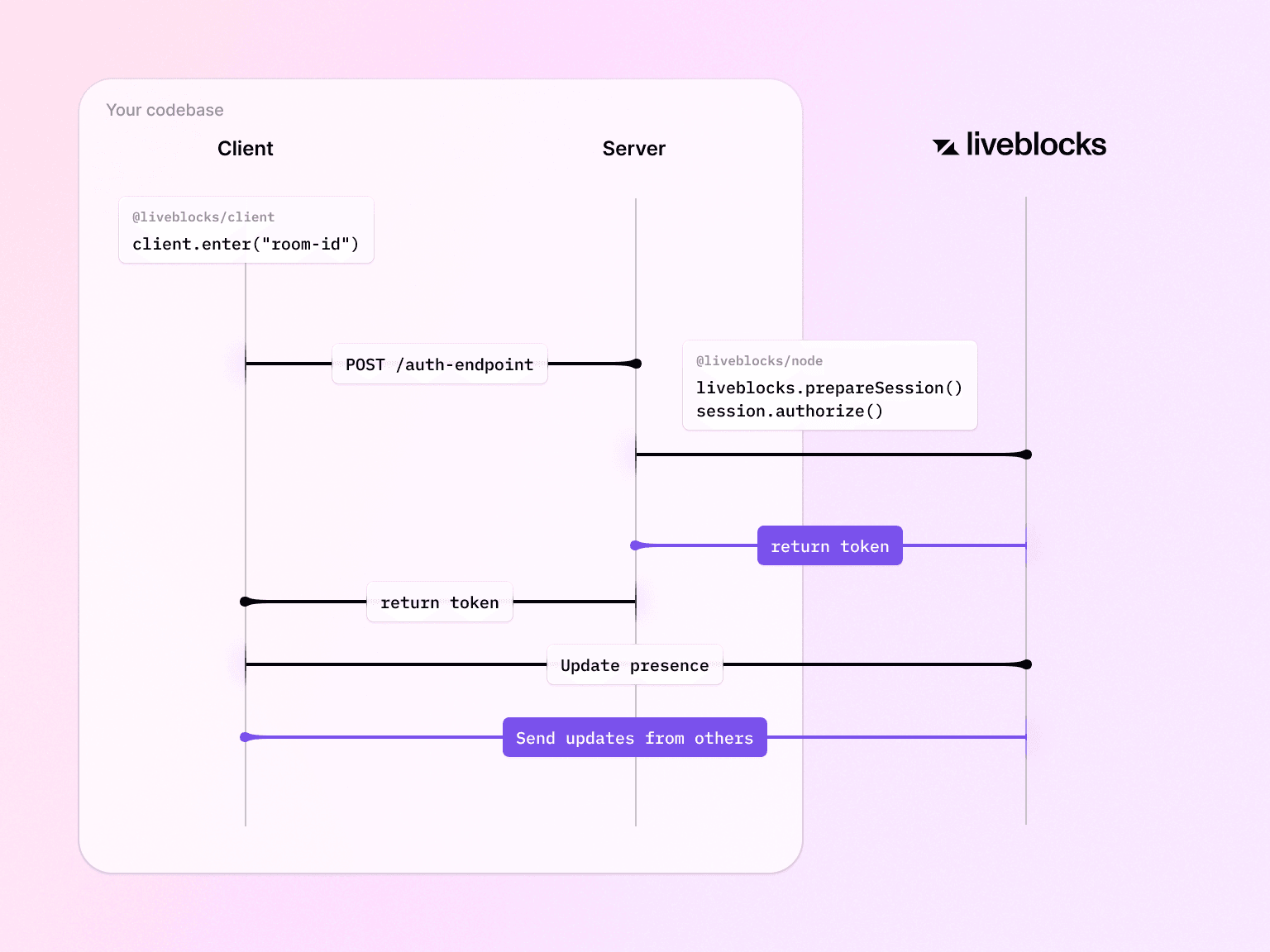
Users need permission to interact with rooms, and you can permit access in an
api/liveblocks-authendpoint by creating the followingapp/api/liveblocks-auth/route.tsfile. In here you can implement your security and define the rooms that your user can enter.With access tokens, you should always use a naming pattern for your room IDs, as this enables you to easily allow access to a range of rooms at once. In the code snippet below, we’re using a naming pattern and wildcard
*to give the user access to every room in their organization, and every room in their group.app/api/liveblocks-auth/route.tsRead access token permission to learn more about naming rooms and granting permissions with wildcards. Note that if a naming pattern doesn’t work for every room in your application, you can grant access to individual rooms too.
Set up the client
On the front end, you can now replace the
publicApiKeyprop onLiveblocksProviderwithauthEndpointpointing to the endpoint you just created.If you need to pass custom headers or data to your endpoint, you can use authEndpoint as a callback instead.
Attach metadata to users
Optionally, you can attach static metadata to each user, which will be accessible in your app. First you need to define the types in your config file, under
UserMeta["info"].liveblocks.config.tsWhen authenticating, you can then pass the user’s metadata to
prepareSessionin the endpoint we’ve just created.app/api/liveblocks-auth/route.tsUser metadata has now been set! You can access this information in your app through
useSelf.Bear in mind that if you’re using the default Comments components, you must specify a
nameandavatarinuserInfo.
More information
Both userId and userInfo can then be used in your React application as such: