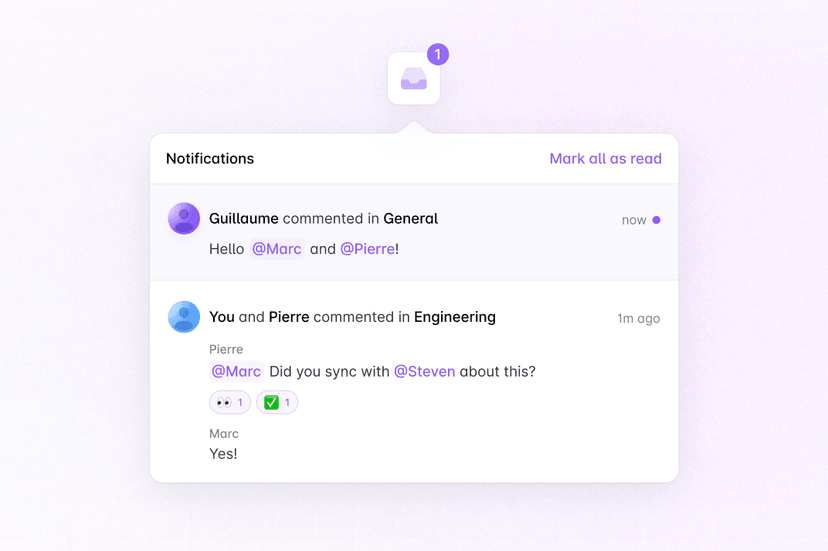
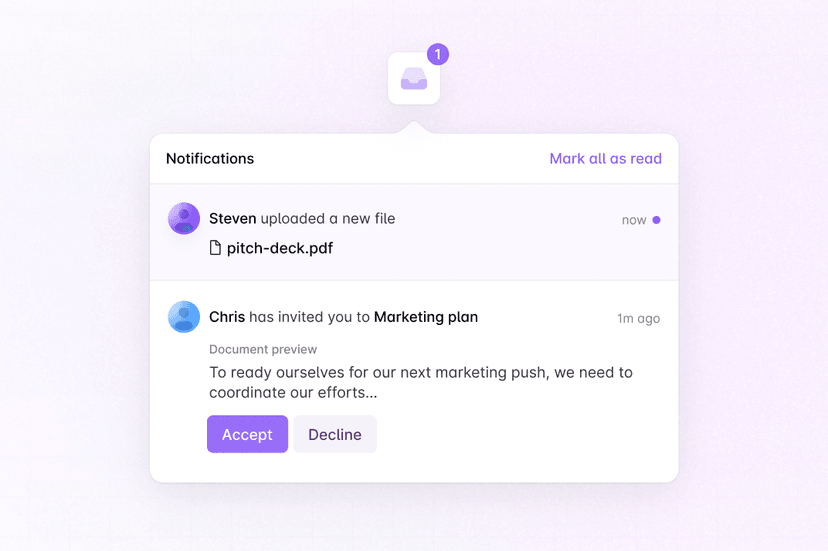
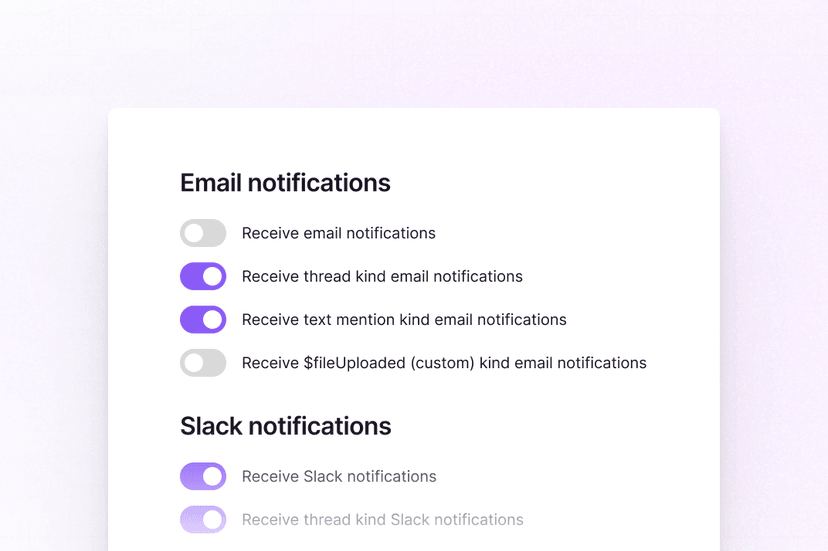
Get started with an in-app custom notification inbox using Liveblocks and Next.js
Liveblocks is a realtime collaboration infrastructure for building performant
collaborative experiences. Follow this guide to start adding custom
notifications to your Next.js /app directory application using the hooks from
@liveblocks/react and the components
from @liveblocks/react-ui.
Quickstart
Install Liveblocks
Every package should use the same version.
TerminalInitialize the
liveblocks.config.tsfileWe can use this file later to define types for our application.
TerminalAdd your secret key
Create a
.env.localfile and add your Liveblocks secret key from the dashboard..env.localSet up authentication
Create an authentication API route with
identifyUser, passing a unique user ID.app/api/liveblocks-auth/route.tsCreate a Liveblocks provider
Liveblocks Notifications uses the concept of projects, which relate to projects in your dashboard. Notifications are sent between users in the same project. To connect and receive notifications, you must add
LiveblocksProviderto a client component in your app.app/Providers.tsxAdd the provider to your layout
After creating your provider file, it’s time to use it. Import your room into your
layout.tsxfile.app/layout.tsxUse the Liveblocks hooks and components
Now that we’ve set up the provider, we can start using the Liveblocks hooks and components. We’ll add
useInboxNotificationsto get the current project’s notifications, then we’ll useInboxNotificationandInboxNotificationListto render them.app/page.tsxImport default styles
The default components come with default styles, you can import them into the root layout of your app or directly into a CSS file with
@import.app/layout.tsxTrigger a custom notification
Trigger a custom notification using
triggerInboxNotificationfrom a server action or route handler. In this example, a custom$fileUploadednotification is sent.Render the custom notification
After triggering the custom notification, modify
InboxNotificationto render it with custom UI.app/page.tsxNext: add your users
Notifications is set up and working now, but the auth route is using a placeholder user—the next step is to connect it to your real users, and attach their name and avatar to their notifications.
Add your users to Notifications
What to read next
Congratulations! You’ve set up the foundation to start building a notifications experience for your React application.