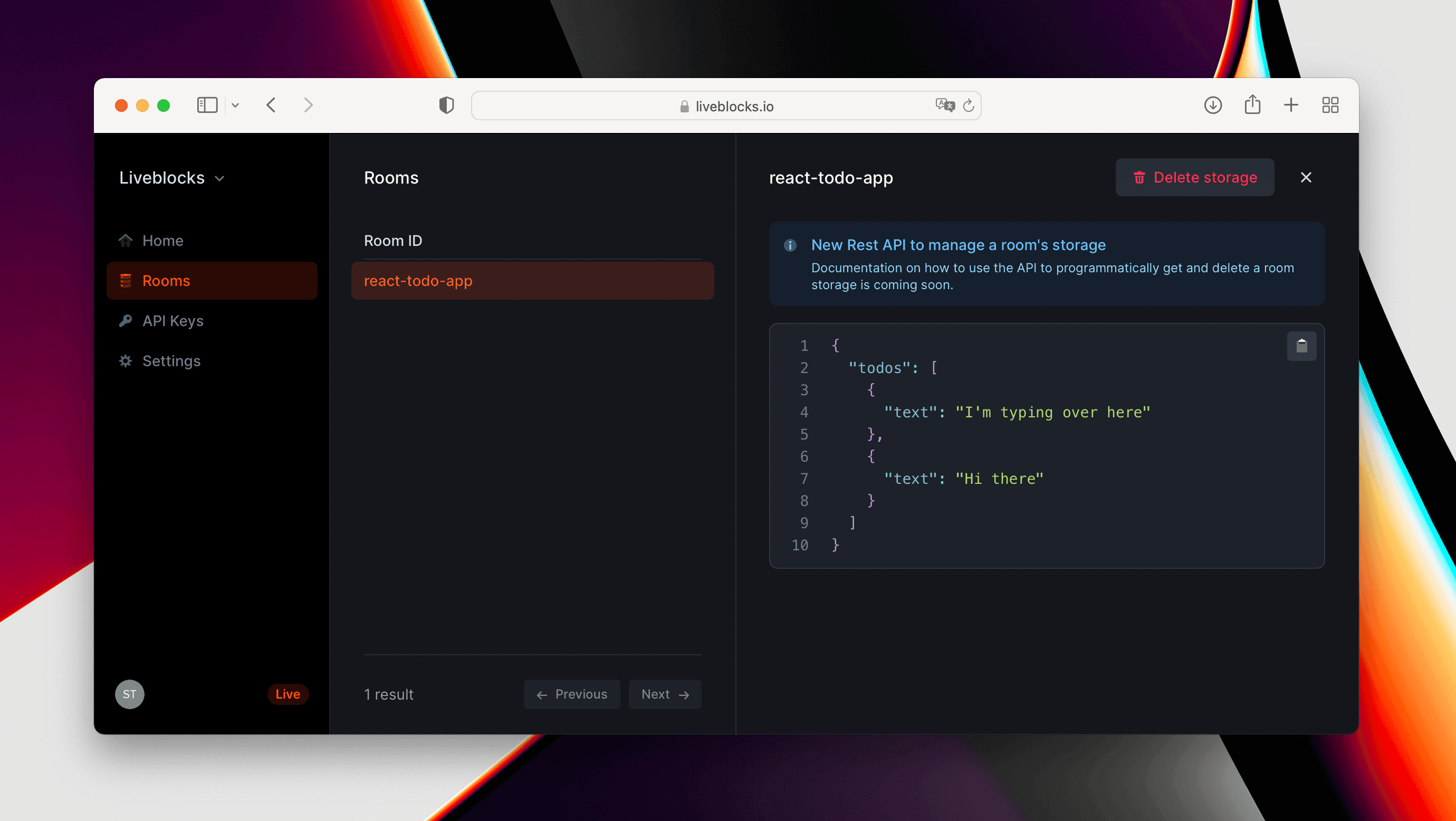
How to create a collaborative to-do list with React, Redux, and Liveblocks
In this 15-minute tutorial, we’ll be building a collaborative to-do list using React, Redux, and Liveblocks. As users edit the list, changes will be automatically synced and persisted, allowing for a list that updates in realtime across clients. Users will also be able to see who else is currently online, and when another user is typing.
This guide assumes that you’re already familiar with React and Redux. If you’re not using Redux, we recommend reading one of our dedicated to-do list tutorials:
The source code for this guide is available on github.
Install Liveblocks into your project
Install Liveblocks packages
First, we need to create a new app with
create-react-app:
Then run the following command to install the Liveblocks packages and Redux:
@liveblocks/client lets you interact
with Liveblocks servers.
@liveblocks/redux contains a
Liveblocks enhancer for a redux store.
Connect to Liveblocks servers
In order to use Liveblocks, we’ll need to sign up and get an API key.
Create an account, then navigate to
the dashboard to find your public key (it starts with
pk_).
With a secret key, you can control who can access the room. it’s more secure but you need your own back-end endpoint. For this tutorial, we’ll go with a public key. For more info, see the authentication guide.
Create a new file src/store.js and initialize the Liveblocks client with your
public API key. Then add our
enhancer to your store
configuration.
We need to edit src/index.js to add the react-redux provider:
Connect to a Liveblocks room
Liveblocks uses the concept of rooms, separate virtual spaces where people can collaborate. To create a multiplayer experience, multiple users must be connected to the same room.
We are going to dispatch the actions provided by @liveblocks/redux to
enter and
leave the room.
In our main component, we want to connect to the Liveblocks room when the component does mount, and leave the room when it unmounts.
Show who’s currently in the room
Try the Liveblocks DevTools extension to inspect and debug your collaborative experiences as you build them, in realtime.
Now that Liveblocks is set up, we can start updating our code to display how many users are currently online.
We’ll be doing this by using the injected object
liveblocks.others
to show who’s currently inside the room.
For a tidier look, here's some styling to place within src/App.css.
Show if someone is typing
Next, we'll add some code to show a message when another user is typing.
Any online user could start typing, and we need to keep track of this, so it's
best if each user holds their own isTyping property.
Luckily, Liveblocks uses the concept of presence to handle these temporary states. A user's presence can be used to represent the position of a cursor on screen, the selected shape in a design tool, or in this case, if they're currently typing or not.
We want to add some data to our redux store, draft will contain the value of
the input. isTyping will be set when the user is writing a draft.
The enhancer option
presenceMapping: { isTyping: true }
means that we want to automatically sync the part of the state named isTyping
to Liveblocks presence.
Now that we set the isTyping state when necessary, let's create a new
component called SomeoneIsTyping to display a message when at least one other
user has isTyping equals to true.
Sync and persist to-dos
Try the Liveblocks DevTools extension to inspect and debug your collaborative experiences as you build them, in realtime.
To-do list items will be stored even after all users disconnect, so we won't be using presence to store these values. For this, we need something new.
Add an array of todos to your redux store, and tell the enhancer to sync and persist them with Liveblocks.
To achieve that, we are going to use the enhancer option
storageMapping: { todos: true }.
It means that the part of the state named todos will be synced with Liveblocks
Storage.
We can display the list of todos and use the actions addTodo and deleteTodo
to update our list:
Voilà! We have a working collaborative to-do list, with persistent data storage.
Summary
In this tutorial, we’ve learnt about the concept of rooms, presence, and others. We've also learnt how to put all these into practice, and how to persist state using storage too.
You can see some stats about the room you created in your dashboard.