Chat SDK AI bot (Advanced)
This example shows how to build an AI-powered Chat SDK bot with Liveblocks and Next.js.
@liveblocks/chat-sdk-adapter— Liveblocks platform adapter (comments and threads mapped to Chat SDK channels)@chat-adapter/state-memory— Chat SDK state adapter (in-memory)aiand@ai-sdk/anthropic— streaming replies from Claude into the thread
What the bot does
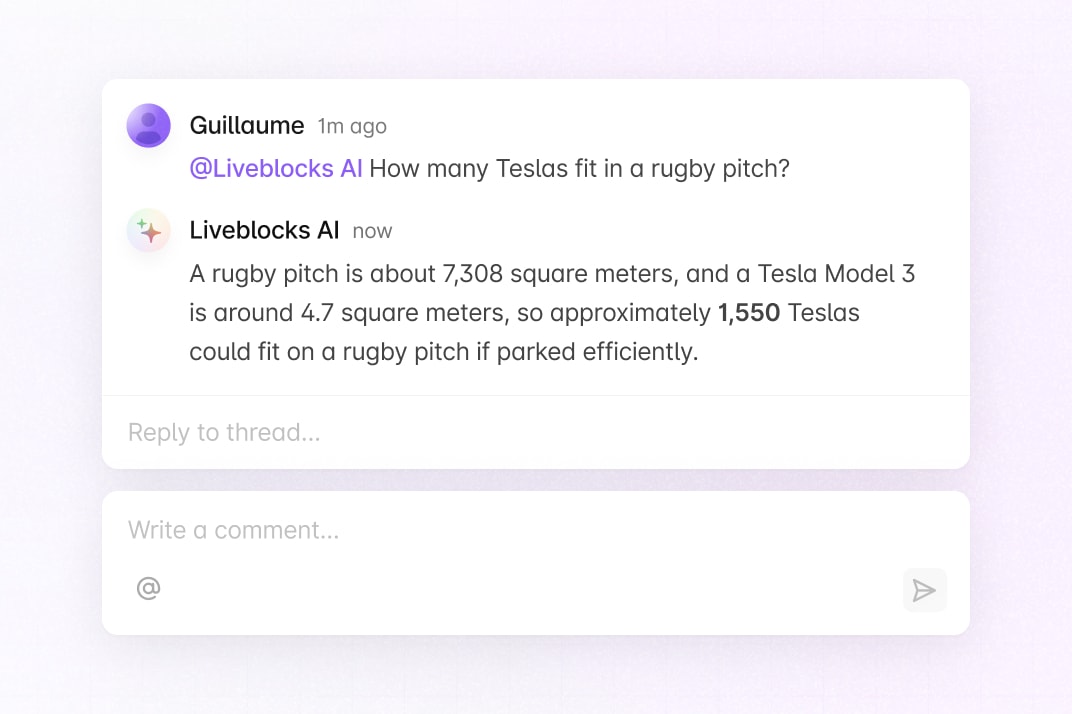
When someone @-mentions the bot in a comment thread, the webhook handler
(POST /api/webhooks/liveblocks) runs bot.onNewMention: it adds
a 👀 reaction to the message, calls streamText with Claude
(claude-sonnet-4-20250514 by default), and streams the model output into
the thread as the bot's reply.
The bot does not handle comment reactions (there is no onReaction
handler). The system prompt in app/bot.ts explains Liveblocks
CommentBody limits so the model favors formatting that survives in comments.
Getting started
Run the following command to try this example locally:
This will download the example and ask permission to open your browser, enabling you to automatically get your API key from your liveblocks.io account.
Environment variables
Add these to .env.local (see manual setup below if you are not using the CLI):
| Variable | Purpose |
| --------------------------- | --------------------------------------------------------------------------------- |
| LIVEBLOCKS_SECRET_KEY | Liveblocks secret key (sk_…) for REST and auth |
| LIVEBLOCKS_WEBHOOK_SECRET | Webhook signing secret (whsec_…) |
| ANTHROPIC_API_KEY | Anthropic API key for Claude |
Setting up webhooks
The Liveblocks adapter (@liveblocks/chat) needs your server to receive
Liveblocks webhooks at POST /api/webhooks/liveblocks (see
app/api/webhooks/liveblocks/route.ts).
- Follow our guide on
testing webhooks locally.
When creating the webhook endpoint, enable at least commentCreated (see
webhook events).
That event is required so new mentions reach
bot.onNewMention. - commentReactionAdded and commentReactionRemoved are optional for this example; they are only needed if you add reaction handling (the non-AI liveblocks-chat-sdk-bot example uses them).
- Copy your webhook secret (
whsec_…) from the webhooks dashboard - Add it to
.env.localasLIVEBLOCKS_WEBHOOK_SECRET
Manual setup
Alternatively, you can set up your project manually:
- Install all dependencies with
npm install - Create an account on liveblocks.io
- Copy your secret key from the dashboard
- Create an
.env.localfile with:LIVEBLOCKS_SECRET_KEY— Liveblocks secret keyLIVEBLOCKS_WEBHOOK_SECRET— webhook signing secret (after you configure webhooks)ANTHROPIC_API_KEY— from the Anthropic Console
- Run
npm run devand go to http://localhost:3000 - Follow the “Setting up webhooks” section above
Deploy on Vercel
To both deploy on Vercel, and run the example locally, use the following command:
This will download the example and ask permission to open your browser, enabling you to deploy to Vercel.
Add ANTHROPIC_API_KEY (and the Liveblocks variables) in the Vercel project
settings. Then follow the “Setting up webhooks” section above using your
production webhook URL.
Develop on CodeSandbox
After forking
this example
on CodeSandbox, add LIVEBLOCKS_SECRET_KEY,
LIVEBLOCKS_WEBHOOK_SECRET, and ANTHROPIC_API_KEY as
secrets.
Webhook delivery to a sandbox URL may require a tunnel (see testing webhooks locally).