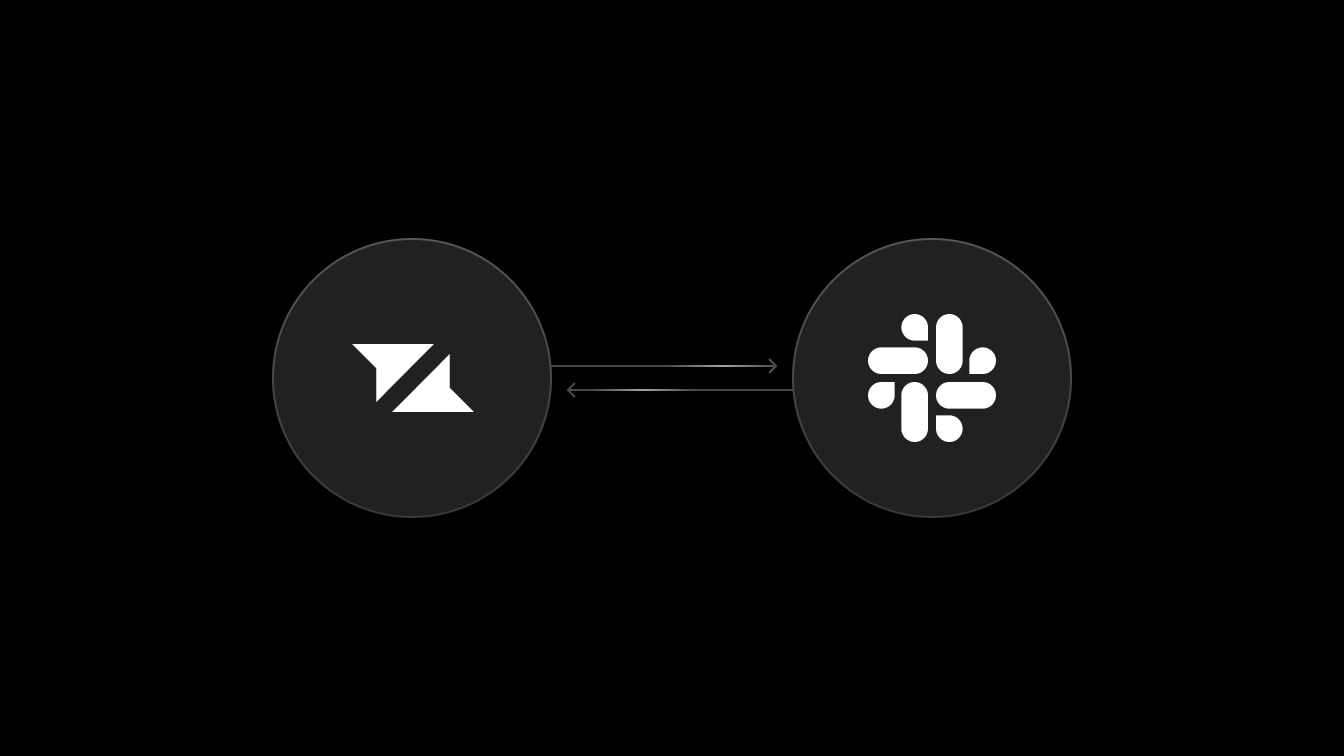
It’s now possible to add custom metadata to individual comments, enabling a host
of use cases such as two-way synchronization with external applications like
Slack, custom comment types, and more.
Previously, Liveblocks allowed you to add custom metadata to each individual
thread, essential for enabling custom thread-level functionality, such as
assigning users, adding tags, attaching X/Y coordinates, and more. With the
latest release, each comment can now contain custom metadata, allowing for
additional comment-level functionality.
Comment metadata now allows for two-way synchronization with external
applications such as Slack, meaning that when a user replies to a comment in
your application, the reply will be automatically synced to Slack, and vice
versa.
Slack stores IDs for each message, and using comment metadata, you can now store
these IDs in individual comments.
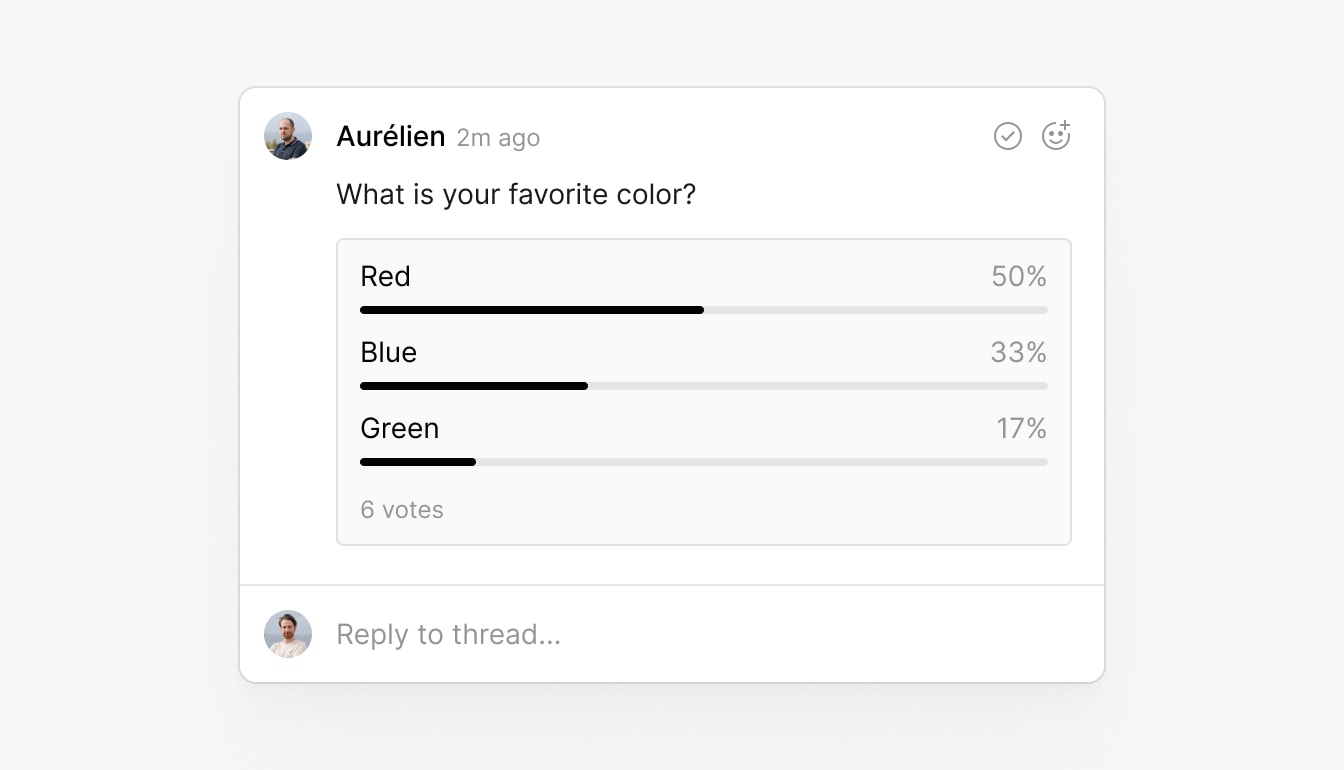
Additionally, you can now create custom comment types and render them however
you wish. For example, you could create a custom poll comment, and render this
component inside your thread.
To create this, you could store poll data directly inside comment metadata.
const poll =createComment({ threadId:"th_d75sF3...", body:{ version:1, content:[{ type:"paragraph", children:[{ text:"What is your favorite color?"}],},],}, attachments:[], metadata:{ type:"poll", option_red:3, option_blue:2, option_green:1,},});
You can then create your own thread component, choose to render this any way you
like, for example with a custom Poll component, alongside
Comment and
Composer.
Next month we’ll be releasing an improved way to customize components in your
thread directly with the
Thread component, meaning
you can keep its benefits—such as displaying unread comment messages.
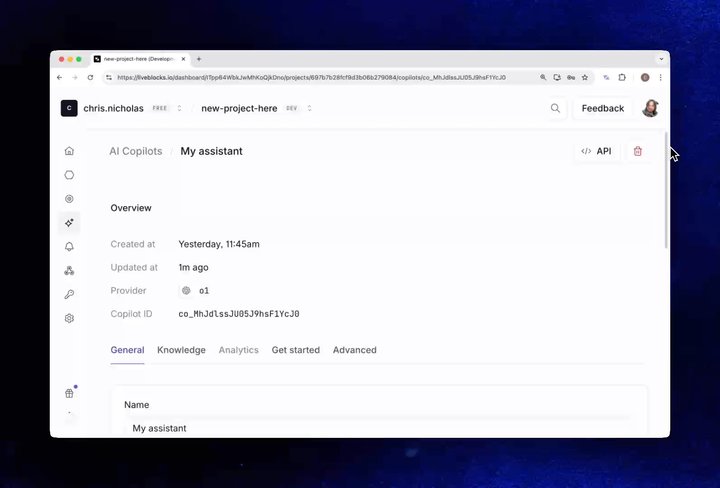
AI copilots in our dashboard can internalize knowledge—uploaded files and
submitted websites—which the AI can use to answer questions on your data.
Copilots now have a new setting that allows you to force AI to read your
knowledge base before answering, ensuring each reply is relevant and accurate.
To enable it, visit your dashboard and check the “Always use knowledge” option.
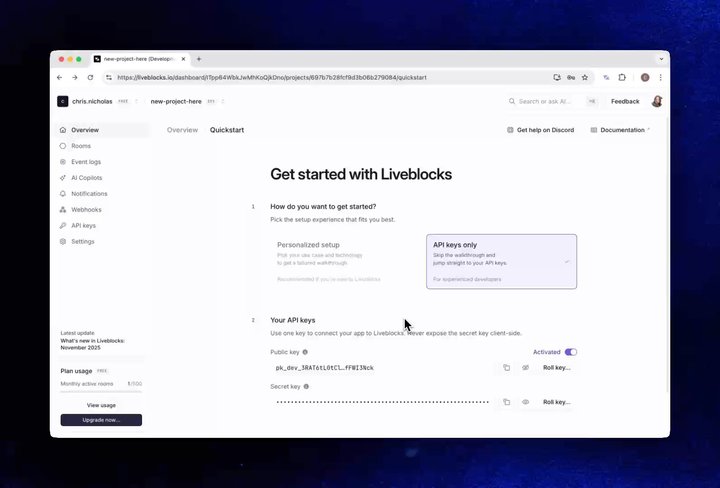
We’ve thought through our whole onboarding flow, and created a new interactive
quickstart section that helps you find specific guides for your use case and
technology more quickly than ever. You can also just skip right to getting your
API keys.