• DocsDocs
  • PricingPricing
Sign in
Get started
Sign in
Get started
    • Realtime Infrastructure
      • Presence
        Presence

        Online users, cursors, selections

      • Broadcast
        Broadcast

        Temporary event signals

      • Storage
        Storage

        Synced conflict-free data

      • Feeds
        FeedsBeta

        Messages and activity logs

      • Threads
        Threads

        Contextual conversations

    • Collaboration features
      • Multiplayer
        Multiplayer

        Realtime collaboration

      • Comments
        Comments

        Contextual commenting

      • Notifications
        Notifications

        Smart alerts for your app

      • AI Copilots
        AI Copilots

        Individual AI assistants

    • Tools
      • Examples

        Gallery of open source examples

      • Showcase

        Gallery of collaborative experiences

      • Next.js Starter Kit

        Kickstart your Next.js collaborative app

      • DevTools

        Browser extension

      • Tutorial

        Step-by-step interactive tutorial

      • Guides

        How-to guides and tutorial

      • Figma UI Kit

        Liveblocks Collaboration Kit

    • Company
      • Blog

        The latest from Liveblocks

      • Customers

        The teams Liveblocks empowers

      • Changelog

        Weekly product updates

      • Security

        Our approach to security

      • About

        The story and team behind Liveblocks

  • Docs
  • Pricing
  • Realtime Infrastructure
    • Presence
    • Broadcast
    • Storage
    • FeedsBeta
    • Threads
    Collaborative features
    • Multiplayer
    • Comments
    • Notifications
    • AI Copilots
    Solutions
    • People platforms
    • Sales tools
    • Startups
    Use cases
    • Multiplayer forms
    • Multiplayer text editor
    • Multiplayer creative tools
    • Multiplayer whiteboard
    • Comments
    • Sharing and permissions
    • Document browsing
  • Resources
    • Documentation
    • Examples
    • Showcase
    • DevTools
    • React components
    • Next.js Starter Kit
    • Tutorial
    • Guides
    • Release notes
    Technologies
    • Next.js
    • React
    • JavaScript
    • Redux
    • Zustand
    • Yjs
    • Tiptap
    • BlockNote
    • Slate
    • Lexical
    • Quill
    • Monaco
    • CodeMirror
  • Company
    • Pricing
    • Blog
    • Customers
    • Changelog
    • About
    • Contact us
    • Careers
    • Terms of service
    • Privacy policy
    • DPA
    • Security
    • Trust center
    • Subprocessors
  • HomepageSystem status
    • Github
    • Discord
    • X
    • LinkedIn
    • YouTube
    © 2026 Liveblocks Inc.
Blog/Updates

Official n8n nodes for Liveblocks

Introducing our new Liveblocks integration for n8n, powering AI workflows with visual nodes.

on April 16th
Official n8n nodes for Liveblocks
April 16th·7 min read
Share article
Product updatesOpen sourceAIn8nWorkflows

Ready to get started?

Join thousands of companies using Liveblocks to build multiplayer experiences for people and agents.

Get started for free

Related blog posts

  • Unveil Week recap: Realtime collaboration for humans and agents

    Unveil Week recap: Realtime collaboration for humans and agents

    Picture of Chris Nicholas
    April 13th
    Updates
  • Agent skills for Liveblocks

    Agent skills for Liveblocks

    Picture of Chris Nicholas
    April 10th
    Updates
  • Python SDK for Liveblocks

    Python SDK for Liveblocks

    Picture of Chris Nicholas
    April 9th
    Updates

Today, we’re releasing a Liveblocks integration for n8n, an open-source workflow automation platform. This enables you to build complex AI workflows using a visual canvas, rather than writing code. n8n already supports hundreds of popular tools and APIs, and now you can integrate Liveblocks directly into those workflows. n8n perfectly complements our new agent workflow features, enabling realtime workflow status, document editing, and AI presence.

What is n8n?

n8n is an open-source workflow automation tool that lets you connect different apps and services together. It’s a great way to automate your workflows and build powerful AI agents by linking nodes together on a visual canvas.

Nodes are available for hundreds of popular tools and APIs, such as GitHub, Google Drive, Slack, Anthropic, and now Liveblocks.
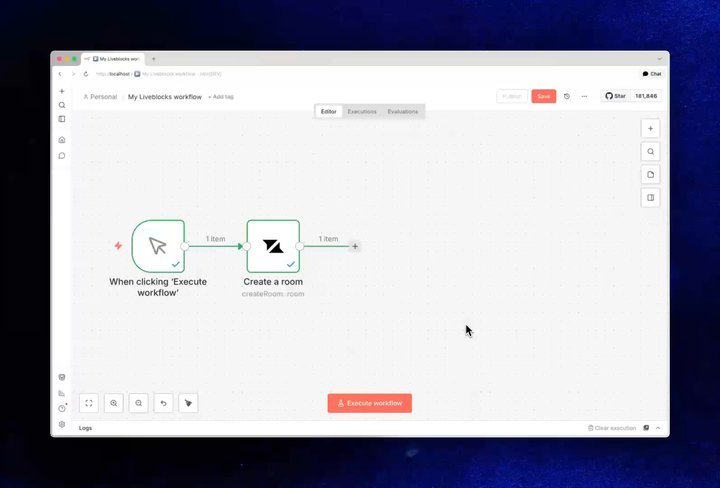
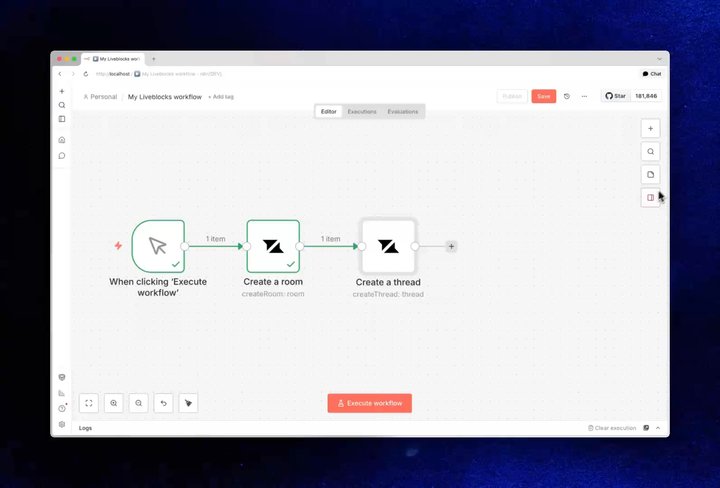
Your browser does not support the video tag.Screen recording: add a Create a thread node and post a Hello world comment

Adding a “Create a thread” node and setting it to post a “Hello world” comment

You can link together different parts of Liveblocks, such as rooms or comments, with other tools and automations.
Your browser does not support the video tag.Screen recording: add a Get a thread node and fetch the thread

Adding a “Get a thread” node and fetching the thread for that comment

Additionally, we’ve added a number of Liveblocks triggers, which you can use to start your workflows. These are all based on our webhooks, which means you can trigger workflows when users create comments, modify realtime storage, have unread notifications, and more.

Liveblocks n8n nodes

Our n8n integration ships a Liveblocks node for each of our 85+ REST APIs—get started by searching for the verified “Liveblocks” option in the n8n sidebar, and clicking “Install node”. Here’s a few examples of how you can use them.

Create a room

Rooms are the foundation of Liveblocks—they’re multiplayer spaces where people and agents can collaborate. In n8n, add a “Create a room” node to set one up and define default access.

Node diagram: Create a room

In your React front end, you can join the room with RoomProvider.

import { RoomProvider } from "@liveblocks/react";
export function Room({ children }) { return ( <RoomProvider id="my-room-id"> {children} </RoomProvider> );}

Modify realtime storage

Your multiplayer room may use Liveblocks Storage for realtime data—for example shapes on a collaborative canvas. Use the “Patch room storage” node to update the document with JSON Patch.

Node diagram: Patch room storage

Changes are displayed in realtime for all connected clients with useStorage.

export function Canvas() {  const shapes = useStorage((root) => root.shapes);
return ( <div> {shapes.map((shape) => <Shape key={shape.id} shape={shape} />)} </div> )}

Use AI to modify realtime storage

By using the “Get room storage” node you can fetch the current realtime document as JSON. Pass this data through your favorite n8n AI model, then “Patch room storage” with the generated JSON Patch to apply AI changes to your document.

Node diagram: Get room storage → AI agent → Patch room storage

Show AI presence in a document

By using the “Set room presence” node you can show, then hide, an AI participant in a document while it generates data. In this workflow, we’re showing presence as realtime storage is modified.

Node diagram: Set room presence → Get room storage → AI agent → Patch room storage → Set room presence 2

In your front end, the AI’s avatar will appear in AvatarStack.

import { AvatarStack } from "@liveblocks/react-ui";
export function Header() { return ( <AvatarStack size="48px" /> );}

You can also build fully custom presence UI with useOthers.

Display realtime AI workflow status

Feeds is our new primitive for storing realtime chat messages, AI activity logs, and similar streams. We can use this to display a workflow’s status—add the “Create feed message” node to add a status such as “Thinking…” as your agent runs. After, update the status to “Done”.

Node diagram: Create feed message → AI agent → Update feed message

In your front end, you can show this message in your UI as soon as it’s created and updated.

import { useFeedMessages } from "@liveblocks/react/suspense";
export function AgentStatus() { const { messages } = useFeedMessages("my-feed-id"); const latestMessage = messages[messages.length - 1];
return ( <div> {latestMessage.data.status} </div> )}

Sending new feed messages updates this UI in realtime.

Reply to comments with AI

Comments allows you to add threaded commenting to your product. To create an AI workflows that automatically replies to comments, add the “Comment created” trigger to start your workflow after a comment is created. Next, use “Get a comment” to get the comment, generate a response, then insert it with “Create a comment”.

Node diagram: Comment created trigger → Get a comment → AI agent → Create a comment

In the front end, comments are displayed with useThreads and Thread, and the AI response will appear after it’s created.

import { useThreads } from "@liveblocks/react";import { Thread } from "@liveblocks/react-ui";
export function Comments() { const { threads } = useThreads();
return ( <div> {threads.map((thread) => ( <Thread key={thread.id} thread={thread} /> ))} </div> )}

Lots more APIs

We’ve only highlighted a few flows. Many more Liveblocks capabilities are exposed as n8n operations, so you can:

  • List rooms, fetch connected users, send realtime events.
  • Multiplayer: Fetch and modify Yjs text document data.
  • Comments: Send emails when users have unread comments.
  • Notifications: Trigger custom notifications in notification inboxes.
  • AI Copilots: Upload knowledge sources to your chats.

Additionally, each webhook event has a corresponding trigger node, allowing you to start your workflows when these events occur.

  • When a room’s created.
  • When a user joins a room.
  • When a reaction’s left left on a comment.
  • When a thread’s marked as resolved.
  • When a text editor’s content is modified.

Templates

We’ve published three full templates, demonstrating how to use n8n nodes to interact with Liveblocks. Interact with them below.

Modify Liveblocks storage with AI

This templates simulates an AI workflow in a drawing tool, containing shapes. Clicking the trigger creates a room with shapes. Then the AI modifies the shapes based on a prompt. The AI’s presence is shown during the process.

Interactive n8n nodes: Modify Liveblocks storage with JSON Patch and Anthropic Claude

Get template

Automatic AI comment reply

This templates sets up an AI that can automatic reply to comments in a thread. First, it checks if the AI was mentioned, before generating a response.

Interactive n8n nodes: Automatic AI reply when mentioned in a Liveblocks comment

Get template

Analyze comment attachments with AI

Similar to the previous template, this one responts to mentions in comment threads. It also analyzes different types of attachments in comments, and can answer questions about them.

Interactive n8n nodes: Analyze Liveblocks comment attachments with Anthropic Claude AI

Get template

Get started

To install the nodes, search for “Liveblocks” in the n8n sidebar, and install the verified node. Read our documentation if you’d like to learn more.

Learn more

Contributors

Contributors include:jrownyctnicholas

2 authors