Language Tutoring
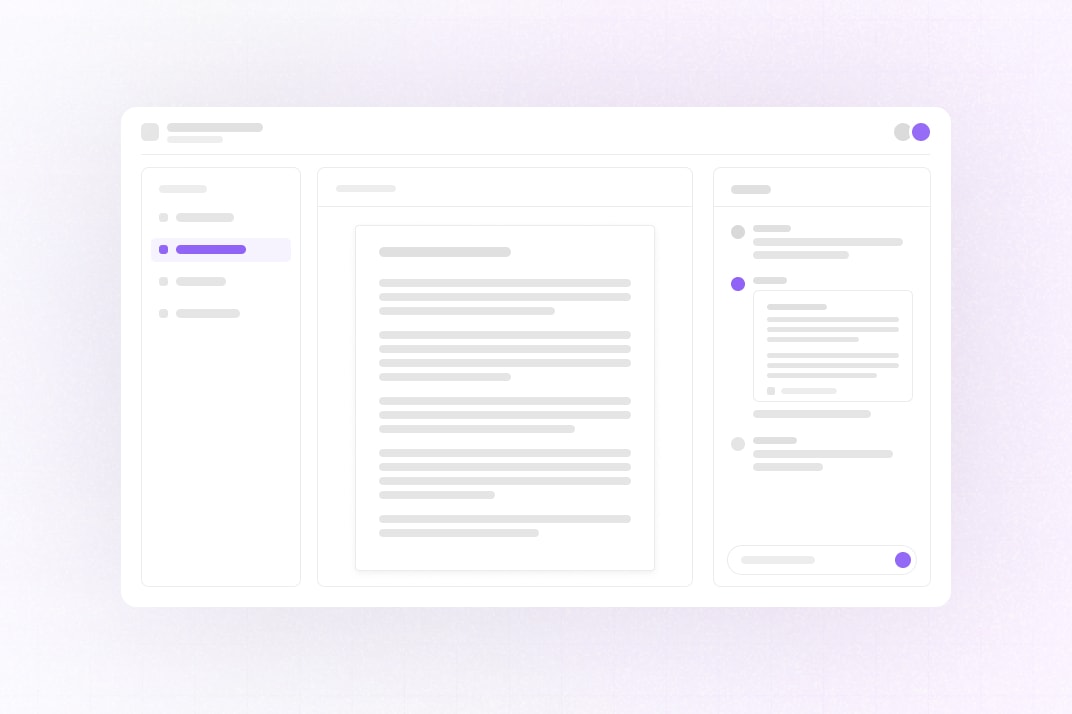
This example shows how to build an online language tutoring tool with Liveblocks and Next.js.
Getting started
Run the following command to try this example locally:
This will download the example and ask permission to open your browser, enabling you to automatically get your API key from your liveblocks.io account.
Manual setup
Alternatively, you can set up your project manually:
- Install all dependencies with
npm install - Create an account on liveblocks.io
- Copy your secret key from the dashboard
- Create an
.env.localfile and add your secret key as theLIVEBLOCKS_SECRET_KEYenvironment variable - Optionally add
GOOGLE_CLIENT_IDandGOOGLE_CLIENT_SECRETfrom the Google Cloud console to enable Google sign-in, withhttp://localhost:3000/api/auth/callback/googleas an authorized redirect URI. Without them, the sign-in page offers demo accounts instead. - Optionally add an
AI_GATEWAY_API_KEYfrom the Vercel AI Gateway to let the@AI Assistantin the chat answer and edit documents. Without it, the assistant runs in a demo mode with canned edits. - Run
npm run devand go to http://localhost:3000
To see realtime sync, sign in as two different users in two browsers (or a private window), create a room as the first user, and open its invite link as the second.
Dev server setup
You can optionally run this example locally using the Liveblocks dev server.
- Install the example as detailed above
- Set
LIVEBLOCKS_SECRET_KEY=sk_localdevin.env.local - Run
npm run dev:local, which starts the dev server and Next.js together, and go to http://localhost:3000
Deploy on Vercel
To both deploy on Vercel, and run the example locally, use the following command:
This will download the example and ask permission to open your browser, enabling you to deploy to Vercel.
Develop on CodeSandbox
After forking
this example
on CodeSandbox, create the LIVEBLOCKS_SECRET_KEY environment variable as a
secret. Add GOOGLE_CLIENT_ID and
GOOGLE_CLIENT_SECRET if you want Google sign-in instead of the demo accounts,
and AI_GATEWAY_API_KEY to enable the @AI Assistant.
License
The tldraw library is provided under the
tldraw license. To
remove the "Made with tldraw" watermark, you must
purchase a license and set it as
NEXT_PUBLIC_TLDRAW_LICENSE_KEY.