Support Inbox
This example shows how to build a collaborative customer support inbox with Liveblocks Feeds, Resend Inboxes, and Next.js.
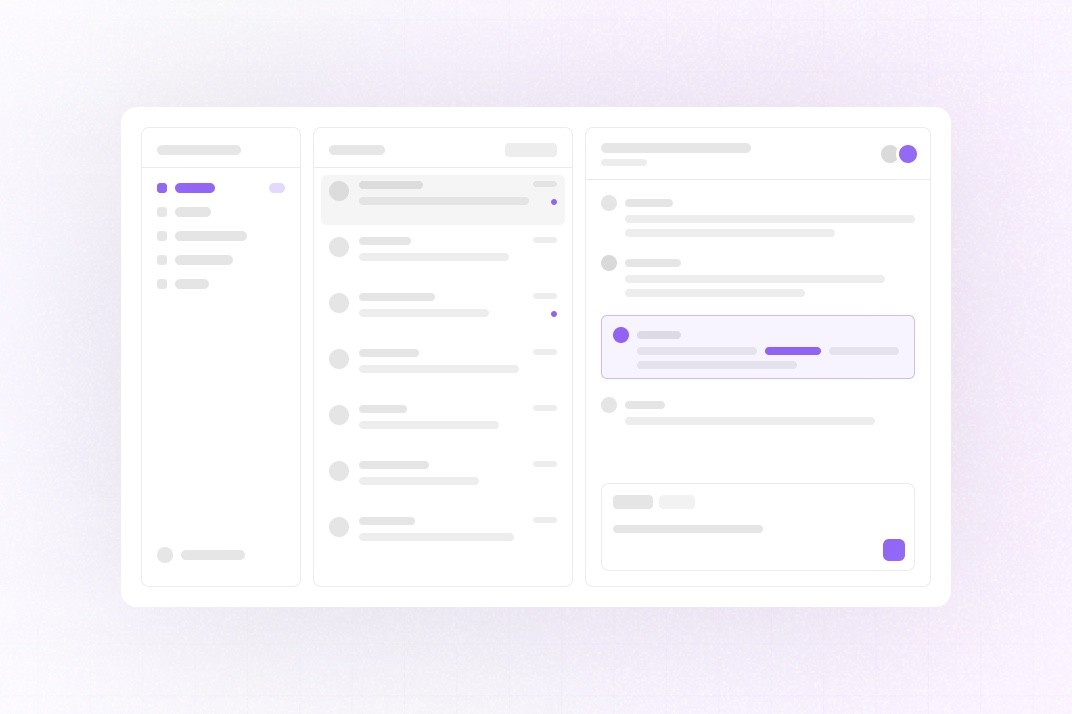
Without a Resend inbox the app runs in demo mode with sample conversations and simulated replies.
Getting started
Run the following command to try this example locally:
This will download the example and ask permission to open your browser, enabling you to automatically get your API key from your liveblocks.io account. To send and receive real email, follow Setting up Resend.
Manual setup
Alternatively, you can set up your project manually:
- Install all dependencies with
npm install - Create an account on liveblocks.io
- Copy your secret key from the dashboard
- Create an
.env.localfile and add your secret key as theLIVEBLOCKS_SECRET_KEYenvironment variable - Run
npm run devand go to http://localhost:3000
To see realtime sync, open the page in two browser tabs. Replies, internal notes, assignments, priority, and status stay in sync across both tabs, and live avatars show who is viewing each conversation.
Setting up Resend
The app runs in demo mode until you set up Resend. Connecting it turns the Liveblocks Support workspace into a real email inbox.
- Create an account on Resend
- Create a full access API key and add it to
.env.localasRESEND_API_KEY - Create an inbox and add its ID (
inb_…) or email address to.env.localasRESEND_INBOX_ID - For local development, expose port 3000 with a tunnel such as
ngrok (
ngrok http 3000). Learn more about using webhooks on localhost. - Add a webhook pointing at
https://<your-host>/api/webhooks/resend, subscribed toinbox.email.receivedandinbox.email.sent - Copy the webhook’s signing secret to
.env.localasRESEND_WEBHOOK_SECRET - Restart
npm run dev
Emails sent to the inbox become conversations, and agent replies are sent through Resend’s Inboxes reply API. For replies to reach external mail providers, the inbox needs an address on your own verified domain. The Settings view in the sidebar shows whether the inbox is connected and which webhook URL to use.
Deploy on Vercel
To both deploy on Vercel, and run the example locally, use the following command:
This will download the example and ask permission to open your browser, enabling you to deploy to Vercel.
Develop on CodeSandbox
After forking
this example
on CodeSandbox, create the LIVEBLOCKS_SECRET_KEY environment variable as a
secret. To send and receive real email,
follow Setting up Resend and add those variables too.