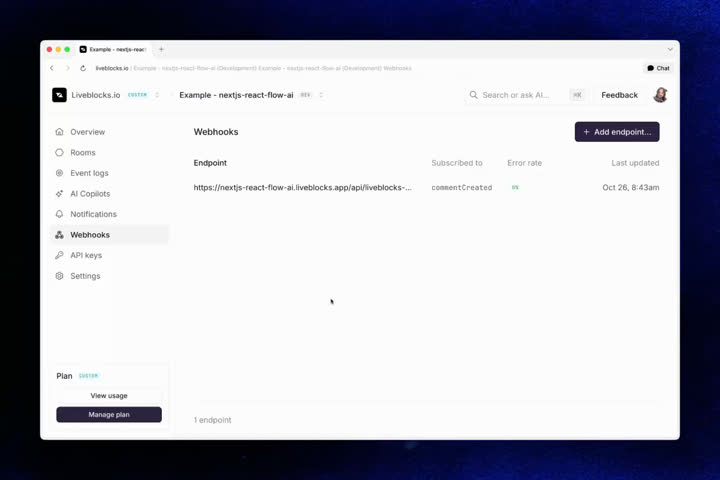
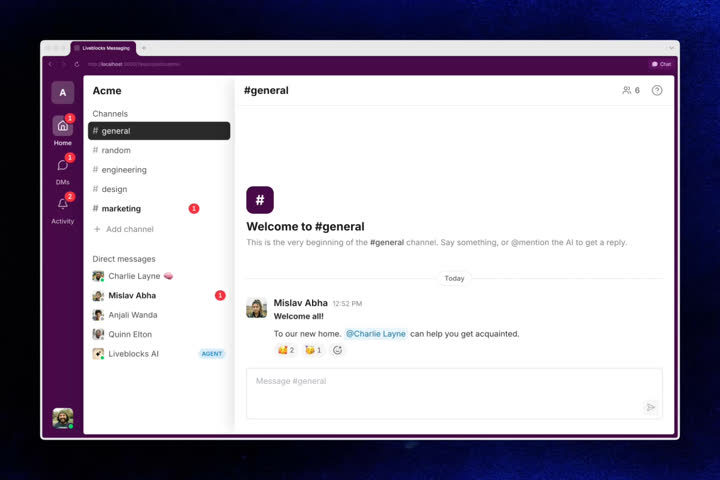
We've added custom headers and test endpoints to webhooks in the dashboard, clearer analytics in the dashboard, and a new Slack-like messaging app example built with Feeds.
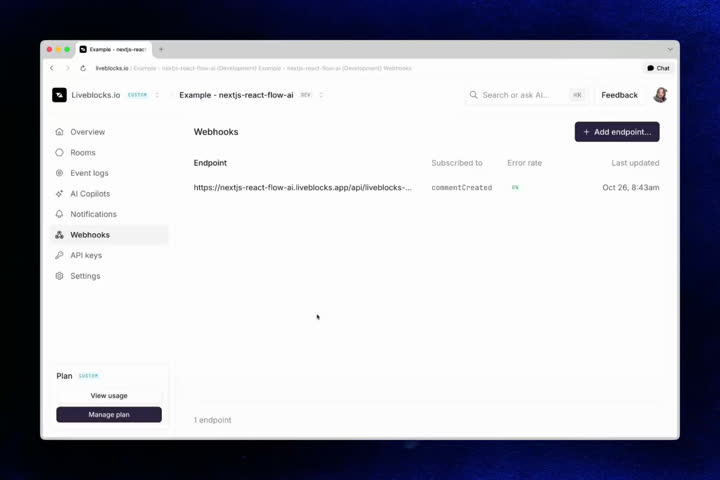
We’ve updated a number of features around webhooks in the dashboard. Add headers
your receiver expects, send example events to a Liveblocks-hosted test endpoint,
and inspect exactly what was delivered.
If your webhook receiver sits behind an API gateway or expects an API key, you
can now add custom HTTP headers when creating or editing an endpoint in the
dashboard. Previously, custom headers could only be set with the
Management API. Each endpoint supports up to
five custom headers, sent with every webhook request.
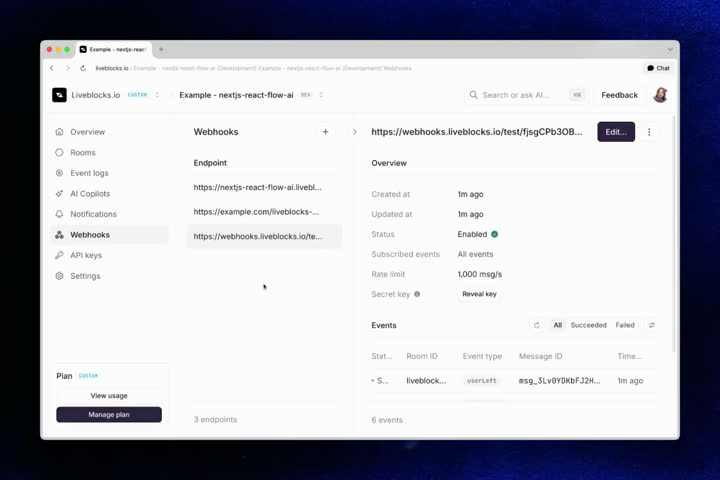
You can now send example events to a Liveblocks-hosted test endpoint. This makes
it easier to test your webhook receiver without having to deploy your own
server. Events will be delivered to the test endpoint instead of your
application, and you can inspect the response body to see exactly what was
delivered.
We’ve also refined the webhook event details view. You can resend an event from
the event itself, open any attempt to view its response body, and copy the
message ID.
Webhooks are no longer sent from a fixed set of IP addresses. If your endpoint
only accepts traffic from our previously published IP addresses, update your
firewall to allow any IP address, and use
signature verification to
confirm requests come from Liveblocks.
All the work above is part of our project to create our own webhook delivery
engine, rather than relying on a third-party service. Webhooks will continue
working seamlessly for you, with no code changes required on your end. Stay
tuned for more details!
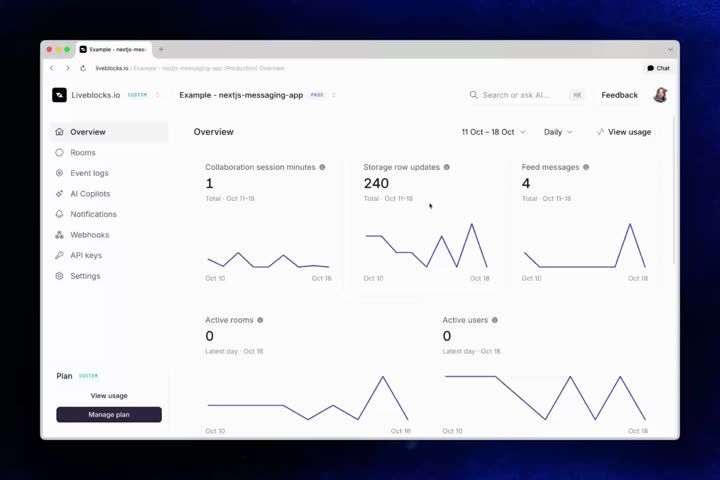
It’s now easier to understand your project’s activity in the dashboard. When you
select a period on a project’s overview, each card updates to match it, and the
subtitle explains how it was calculated. Comments, notifications, and
connections show the total for the period, active users and rooms show the
latest day, week, or month, and peak connections show the highest value.
To dig deeper, click “View usage” on a project’s overview to open the usage page
for that project, keeping the same period and interval. The active users and
peak connections tooltips now describe what each metric measures, and the header
shows your team and project, making it easier to switch back to all projects.
We’ve added a new example showing how to build a Slack-like messaging app with
Feeds, Storage, and Presence—no database needed, as
Liveblocks stores everything. Each workspace is a room, with channels kept in
Storage, and each channel’s messages and direct messages stored in feeds.
Messages support rich text and @-mentions, and mentioning the AI teammate
streams a reply into a thread. Each user also has a personal activity feed that
powers unread badges for direct messages, mentions, and thread replies.